
How to Connect Windsurf to Revit, Rhino and Archicad (MCP)

Short answer: Connect Windsurf to your CAD and BIM tools through Archi Automate. Install the one Windows 10/11 x64 bridge, open the Hub, click Connect next to Windsurf on the LLMs page, and restart Windsurf. From then on your prompts can read and (when you allow it) edit live models in Archicad® 29, Autodesk® Revit® 2025–2027, Rhino 8, and vendor-neutral openBIM (IFC). It is genuinely one click — the Hub writes the Model Context Protocol (MCP) configuration into Windsurf for you, backing up what was there and merging non-destructively.
Windsurf is the agentic AI editor from Codeium, and it speaks MCP natively. That is the whole trick: Archi Automate exposes your design software as MCP tools, and Windsurf — like any MCP client — can call them. No plugins to hand-configure, no JSON to hand-edit, no copy-pasting endpoints. This guide walks through the connection and then shows what you can actually ask, leading with Archicad because that is the headline host for this post.
How Windsurf talks to your model
It helps to picture the chain. Windsurf is the AI client where you type. Archi Automate is the bridge that runs locally on your Windows machine. Your CAD/BIM application — Archicad, Revit, Rhino — is the host holding the live model. When you ask Windsurf a question about your project, Windsurf calls an MCP tool, the bridge routes that call to the right host, the host answers from the real model, and the result flows back into your conversation.
For Revit and Rhino, the AI composes governed operations at runtime across the host's own API, so it can answer open-ended questions and perform a wide range of edits (Rhino writes are wrapped in a managed Undo). Archicad works differently and deliberately so: it uses a first-party add-on with a curated command set — read freely, and create, move, or delete Walls, Columns, Slabs, and Objects. There is no dynamic code generation and no dry-run preview on the Archicad side; writes apply directly once you switch to Allow changes. openBIM is headless — no CAD app or license needed — for opening and federating IFC, validating against IDS, clash detection, quantity take-off, embodied-carbon estimates, and authoring BCF.
Before you start
- Windows 10 or 11, 64-bit. The Archi Automate installer is a single download; the 14-day trial is the full product, no key required.
- Windsurf installed and signed in. Pick a strong model inside Windsurf — reliable AI-composed operations across a host API benefit from a capable model, especially for multi-step BIM edits.
- The host you want to drive is open with a project loaded: Archicad 29, Revit 2025–2027, or Rhino 8. For IFC work you do not need any CAD app running.
Connect in 3 steps
Open the Hub dashboard. It has four pages — Bridges (where host status shows as colored dots), LLMs, Guardrails, and Help. Go to the LLMs page; this is where every AI client is listed with a one-click Connect button.
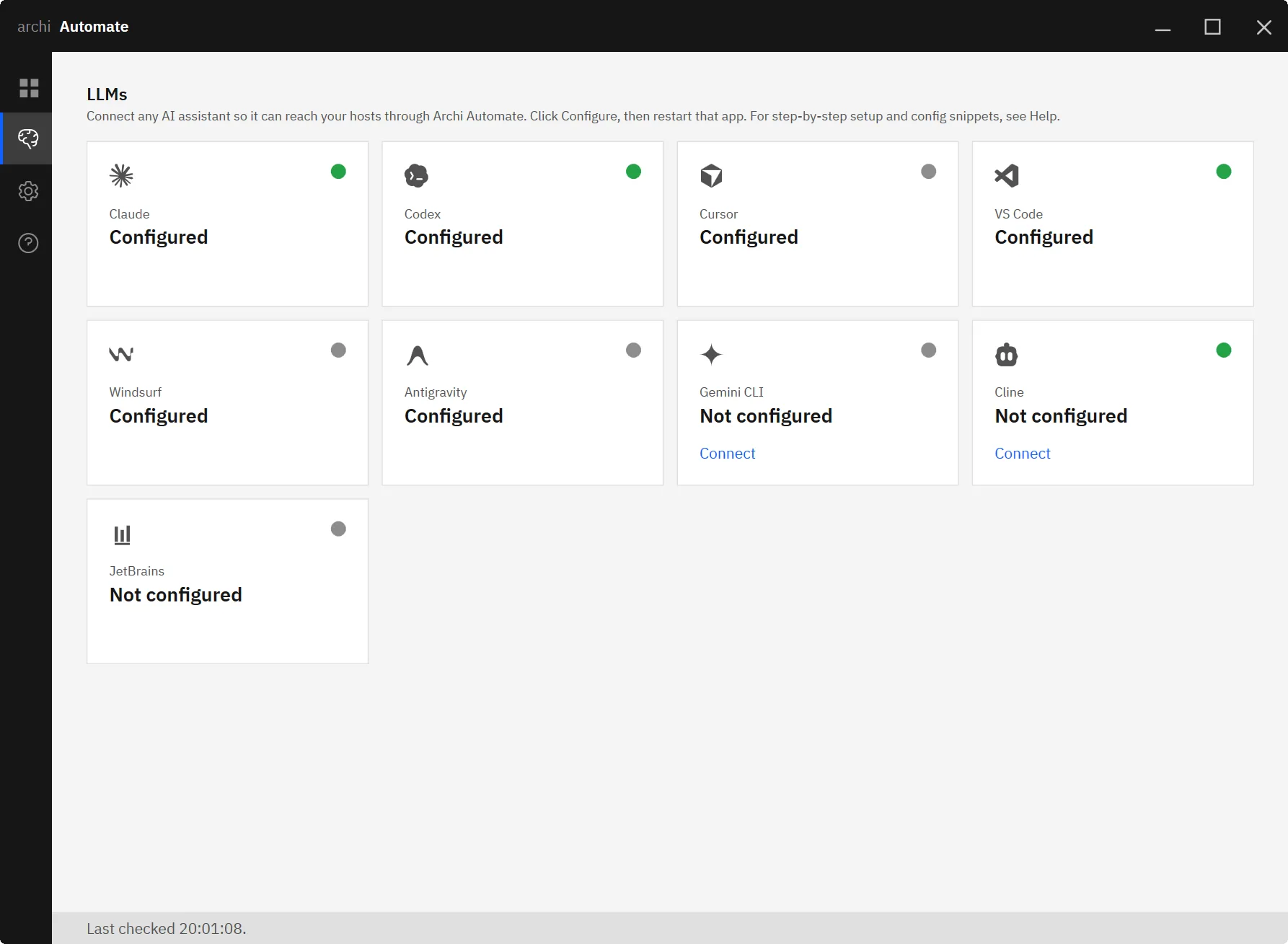
Step 1 — Check your bridges. On the Bridges page, confirm the host you want shows a live status dot. Make sure Archicad (or Revit, or Rhino) is open with your project.
Step 2 — Click Connect next to Windsurf. On the LLMs page, find Windsurf and click Connect. The Hub writes the MCP configuration straight into Windsurf — it backs up your existing config first and merges the new server entry non-destructively, so nothing you already had is lost.
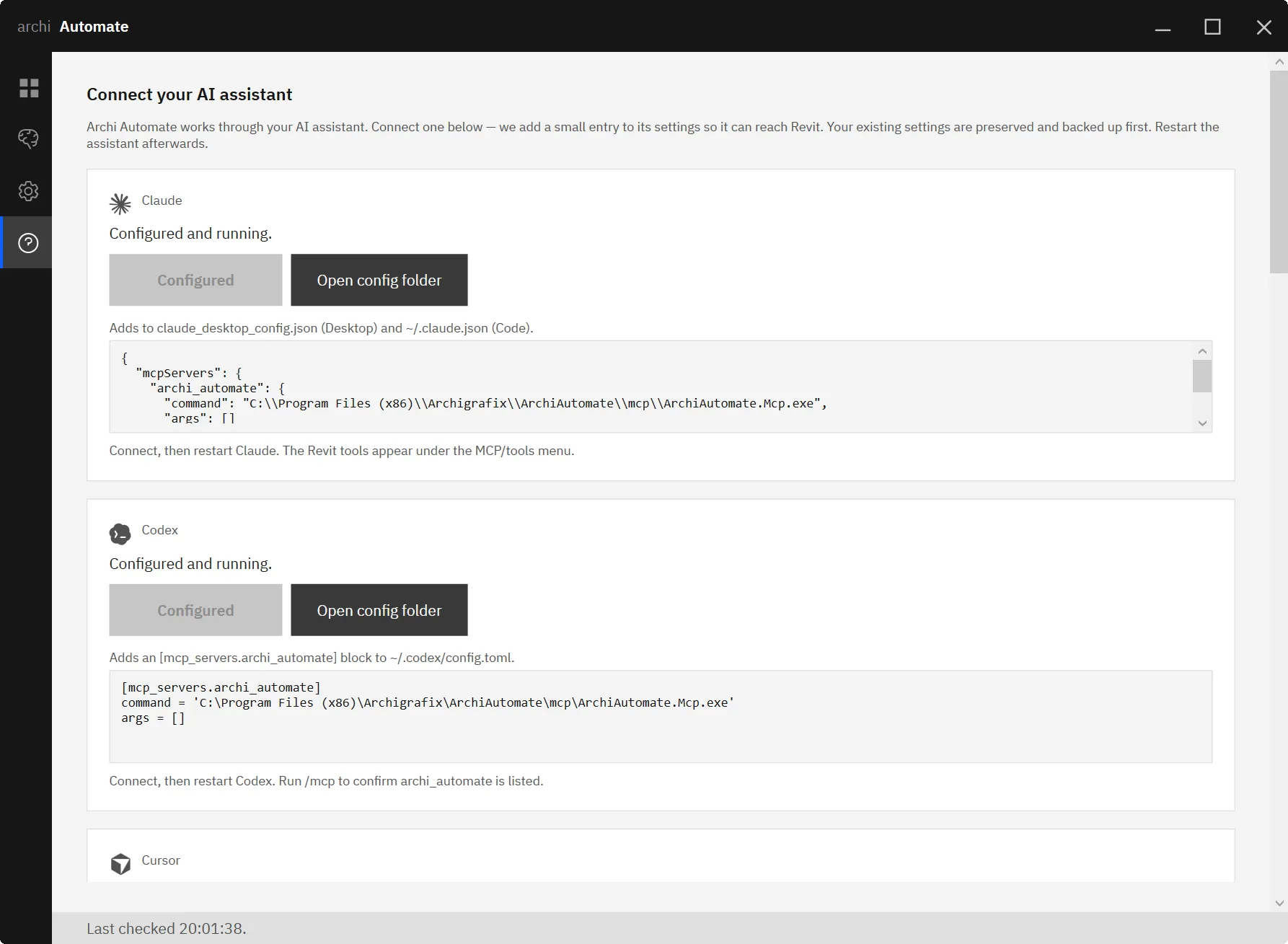
Step 3 — Restart Windsurf and run a read-only prompt. Fully quit and reopen Windsurf so it picks up the new MCP server. Leave Guardrails on the default Read only, then ask something harmless like "How many walls are in this project?" If you get a real count back from your open Archicad model, the bridge is working end to end.
That is the entire setup. Windsurf is one of eight one-click clients Archi Automate supports — alongside Claude (Desktop and Code), OpenAI Codex, Cursor, VS Code's Copilot agent, Antigravity, Gemini CLI, and Cline. JetBrains IDEs connect with a short snippet, and any other MCP-compatible client works too.
What you can ask, per host
Archicad® 29 (Graphisoft). Start with reads — they are always safe. Ask "How many walls are in this project?" to sanity-check the connection, then explore element counts, types, and properties. When you are ready to make changes, switch Guardrails to Allow changes and try "Create a wall between these two points." or "Move the selected columns 500 mm east." Remember the curated command set covers Walls, Columns, Slabs, and Objects, and that on Archicad these writes apply directly — there is no preview step.
Autodesk® Revit® 2025–2027. Revit is great for schedule and data work. Ask Windsurf to "Summarize the room schedule." and it will read the live model and report back. Because the AI composes operations across the Revit API at runtime, you can go well beyond canned queries into reasoning about your model's data.
Rhino 8 (McNeel). Rhino shines for geometry questions. Try "Report the volume of every Brep on a layer." When you allow changes, Rhino writes are wrapped in a managed Undo, so a single Ctrl+Z rolls back what the AI did — a comfortable safety net while you build trust.
openBIM (IFC · IDS · BCF). No CAD app required. Federate IFC models, run clash detection, take off quantities, estimate embodied carbon, and validate compliance: "Validate against my IDS." Model edits here are previewable, and file writes need Allow changes.
Working across programs in one conversation
Because every host sits behind the same bridge, a single Windsurf conversation can reach more than one of them. You might pull a room schedule from Revit, cross-check geometry in Rhino, and validate a federated IFC against your IDS — without leaving the chat. Keep the relevant hosts open, watch their status dots on the Bridges page, and let Windsurf route each request to the right tool. This is where the agentic editor earns its keep: it can chain reads across programs and assemble an answer that no single application could give you alone.
Safety and guardrails
Archi Automate is built so the AI can never quietly change your model. Guardrails has three modes. Read only is the default and lets the AI inspect but never modify. Preview changes runs edits as a dry-run so you see what would happen before committing — but note this does not apply to Archicad or to file writes. Allow changes is the only mode in which edits actually land.
The Archicad point bears repeating because it is the headline host here: Archicad has no preview. Its curated commands apply directly the moment you are in Allow changes, so treat that switch with respect — make your reads first, confirm the elements you mean, and only then allow the write. Across every host, each operation is screened, deletes can be blocked outright, sessions are audited, and Archi Automate never auto-saves your file. You stay in control of what gets written and when.
Other clients and hosts
If your team uses more than one AI tool, the same Hub connects them all the same way. See the companion guides for connecting Claude to your AEC tools, connecting Cursor, and connecting Antigravity. For host-specific deep dives, read MCP for Archicad, MCP for Rhino, and MCP for Revit.
Try it
Windsurf plus Archi Automate turns your agentic editor into a hands-on assistant for live Archicad, Revit, Rhino, and IFC work — reading your real models and, when you allow it, editing them under firm guardrails. Start the free 14-day trial of Archi Automate, connect Windsurf in one click, and ask your first question.











