
How to Connect Claude to Revit, Rhino and Archicad (MCP)

Short answer: Claude connects to your AEC tools through the Model Context Protocol (MCP). You install the Archi Automate bridge once, open its Hub, and click Connect next to Claude on the LLMs page — that writes the right config for Claude Desktop or Claude Code automatically. From then on you can ask Claude in plain language to read, analyze, and (under your policy) author work in a live Revit, Rhino, or Archicad model, or in a vendor-neutral openBIM/IFC file.
What this guide covers
This is a practical setup guide for connecting Anthropic's Claude to the four hosts Archi Automate bridges: Autodesk® Revit®, Rhino, Archicad, and openBIM (IFC · IDS · BCF). It explains the roles in the chain, walks through the one-click connection on the Hub, shows where to click, lists what Claude can do per host, and sets out the guardrails that keep your model safe. The same bridge serves every other MCP client too, so nothing here locks you to one assistant.
How Claude talks to your model
It helps to see the full path a natural-language request travels before anything changes in your model. There are four roles in the chain, and each one is replaceable or inspectable on its own.
Claude → Model Context Protocol → Archi Automate bridge → your live model or IFC file
- Claude — the assistant you type or speak into (Claude Desktop or Claude Code). It reads your prompt and decides what needs to happen.
- Model Context Protocol — the open, inspectable transport that carries structured requests between Claude and the bridge. Because it is an open specification, the same setup works with any compliant client.
- Archi Automate bridge — the component running next to your host. It inspects the live model, composes the required operation at runtime, checks it against your active guardrail policy, and screens it before anything runs.
- Host transaction — where approved work executes inside a managed transaction with automatic rollback on error (Revit/Rhino), a governed command set (Archicad), or an in-memory IFC edit you then save (openBIM).
Because the protocol sits in the middle, swapping or upgrading the assistant does not change the bridge, your policy file, or your guardrails. As Claude models improve, the same bridge inherits the upgrade with no migration on your side. For a primer on the protocol itself, see MCP for Revit.
Before you start
- Windows 10 or 11 (x64) with at least one supported host installed: Revit 2025–2027, Rhino 8, or Archicad 29. (openBIM/IFC needs no host application at all — it works directly on IFC files.)
- Claude Desktop or Claude Code installed. For reliable AI-composed operations, use Claude Opus 4.8 (High) or better.
- The Archi Automate installer, which sets up the bridges for the hosts it detects and a 14-day full trial with no key required. Start the free trial.
Connect Claude in three steps
The whole connection is one click on the Hub — you do not edit JSON by hand.
1. Open the Hub and go to the LLMs page
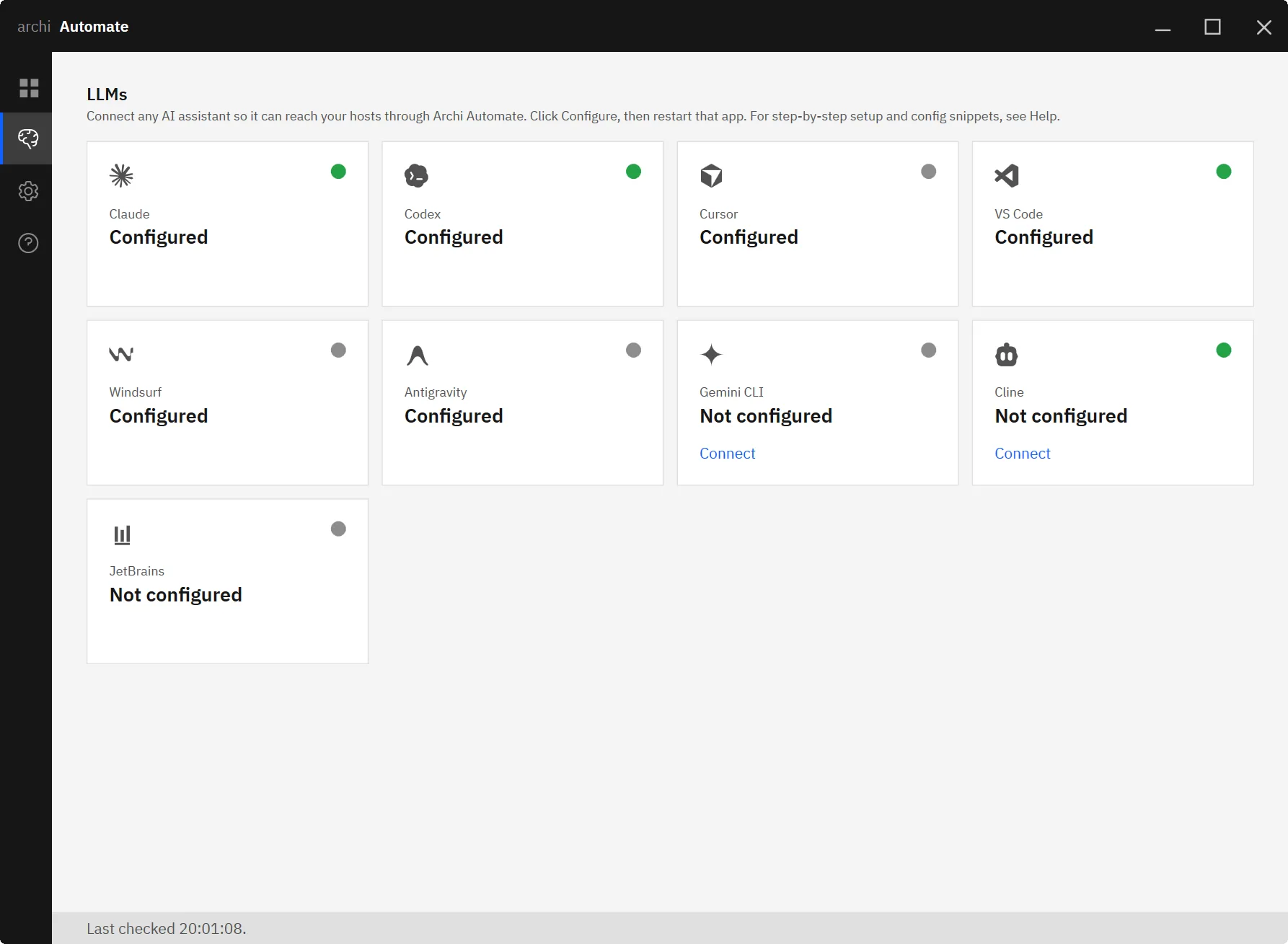
After installing, open the Archi Automate Hub. The Bridges page shows each host — Revit, Archicad, Rhino, and openBIM (IFC · IDS · BCF) — with a status dot, so you can confirm the bridge for your tool is live before you connect an assistant.
2. Click Connect next to Claude
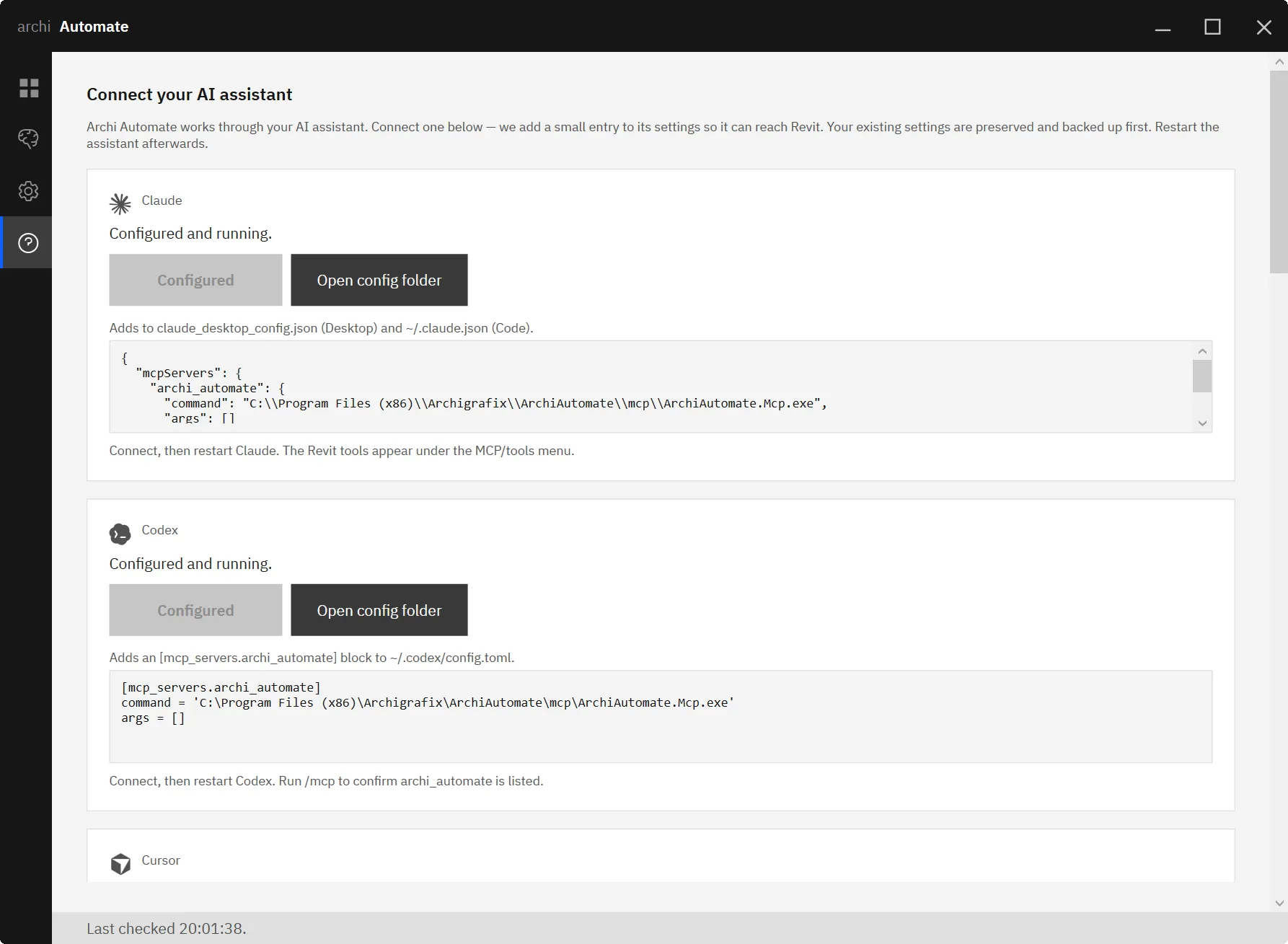
On the LLMs page, find Claude in the list of one-click clients and click Connect. The Hub writes the archi_automate MCP entry into Claude's own configuration for you (it backs up the existing file first and merges non-destructively). Claude Desktop and Claude Code are both supported one-click.
3. Restart Claude and run your first prompt
Restart Claude so it picks up the new connection, then ask a plain-language question. Read operations are unrestricted by default and writes stay blocked until you change the execution mode, so a safe first prompt is simply: "List the open models you can see."
What you can ask Claude to do, per host
| Host | Status | Example prompts |
|---|---|---|
| Revit 2025–2027 | Supported | "How many rooms are on Level 2?" · "Audit every door for a fire rating parameter and list the ones missing it." |
| Rhino 8 | Supported | "List the layers in this file." · "Collect every closed Brep on the FACADE layer and report its volume." |
| Archicad 29 | Supported | "How many walls are in this project?" · "Create a wall between these two points." (writes go through a first-party add-on) |
| openBIM (IFC · IDS · BCF) | Supported | "Open this IFC and validate it against my IDS." · "Federate the architectural and structural models and find clashes." |
For Revit and Rhino, Claude composes governed operations at runtime across the host's API — it is not limited to a fixed command catalog. For Archicad, it reads the model and creates, moves, or deletes elements through a first-party add-on. For openBIM, it opens or federates IFC files from any authoring tool — no CAD application or host license needed — to read, query, validate against buildingSMART IDS, run clash detection and quantity take-off, estimate embodied carbon, render snapshots it can actually see, and turn findings into BCF coordination issues.
Work across programs in one conversation
Because one connection reaches every running host at once, a single Claude conversation can carry context between programs — for example, read a wall layout from an open Rhino model and create matching walls in Archicad, or summarize a Revit room schedule and check the same rooms in an IFC export. Each step still targets one host and one document; the interoperability is mediated by the conversation, not a hidden background sync.
Safety: your model stays under your policy
Claude only does what your guardrail policy allows. The default execution mode is read-only, which refuses every write. Preview (dry-run) mode runs a change and rolls it back so you can confirm the result before committing (Revit, Rhino, and openBIM model edits). Allow-changes mode applies writes. Every operation is screened before it runs, deletions can be blocked outright, and every session is recorded to an audit log. No model is ever saved automatically — you save when you are ready.
Connect a different assistant or host
The same bridge and the same policy serve every client, so you are never locked in. See the per-client guides for Codex, Cursor, Gemini CLI, VS Code, Windsurf, Antigravity, and Cline — or the host pillar guides for Rhino, Archicad, and IFC / openBIM.
Get started
Connecting Claude to your live AEC models takes about a minute from a fresh install. Start your 14-day free trial of Archi Automate — no key required, all hosts included.











