
How to Connect Gemini CLI to Revit, Rhino and Archicad (MCP)

Short answer: To connect Google Gemini CLI to Autodesk® Revit®, Rhino 8, Archicad 29, or openBIM (IFC), install Archi Automate, open the Hub, go to the LLMs page, and click Connect next to Gemini CLI. The Hub writes the Model Context Protocol (MCP) configuration into the client for you, backs up what was there, and merges without overwriting your existing setup. Restart the CLI, run a read-only prompt to confirm the link, and Gemini CLI can read your live model and — when you allow it — compose governed changes. The whole thing takes about three clicks and one restart.
Gemini CLI is Google's command-line AI client, and its terminal-first nature makes it a natural fit for scripted, repeatable checks against your design data. Run the same validation prompt across a folder of IFC files, fold a model query into a shell script, or keep a single conversation open while you move between programs. This guide walks through the chain that makes it work, the three-step connection, and the kinds of prompts each host understands — leading with openBIM, where batch validation from a terminal really shines.
How Gemini CLI talks to your model
There are a few links in the chain, and it helps to picture them. Gemini CLI runs on Google's Gemini models in the cloud — that is the reasoning engine. Locally, Archi Automate runs a bridge that exposes your CAD/BIM hosts (Revit, Rhino, Archicad) and the headless openBIM connector over MCP, an open standard for letting AI clients call tools. When you ask a question, Gemini CLI decides which tools to call, the Hub relays those calls to the right host, the host returns live data, and Gemini composes governed operations at runtime against the host's API.
Because the heavy reasoning happens on Google's side, pick a capable Gemini tier for reliable tool use. Lighter models can answer trivia, but composing a correct sequence of model operations — reading geometry, mapping it to the right command, checking a result — rewards a stronger model. Nothing about your design files leaves your machine except the specific data Gemini needs to answer the prompt you typed.
Before you start
You'll need Windows 10 or 11 (x64), the Archi Automate installer (one installer covers every host), and Gemini CLI installed and signed in to your Google account. If you want to drive a desktop CAD app, have it open: Revit 2025–2027, Rhino 8, or Archicad 29. For openBIM work you need nothing else — the IFC connector is headless and requires no CAD application or license. The 14-day trial is the full product with no key, so you can test all of this before committing.
Connect in three steps
Open the Hub and go to the LLMs page. This is the one-click connection screen, listing every supported client. Confirm your hosts are live first on the Bridges page — the status dots tell you which hosts are up.
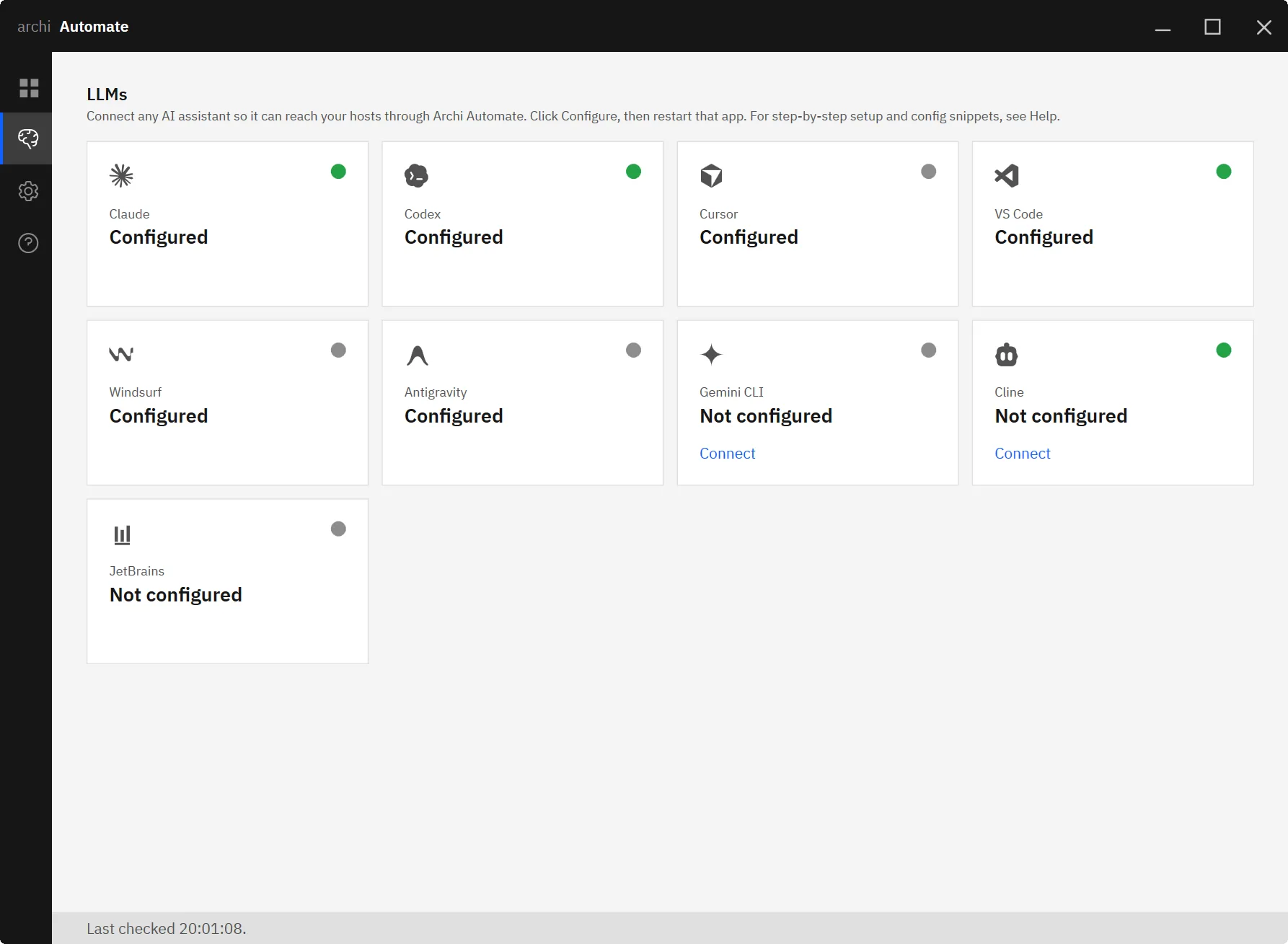
Step one: find Gemini CLI. Locate Gemini CLI in the list of clients on the LLMs page.
Step two: click Connect. Press Connect next to Gemini CLI. The Hub writes the MCP server configuration into the client's config file, backs up the previous version, and merges the new entry without destroying anything already there. No JSON editing, no copy-paste.
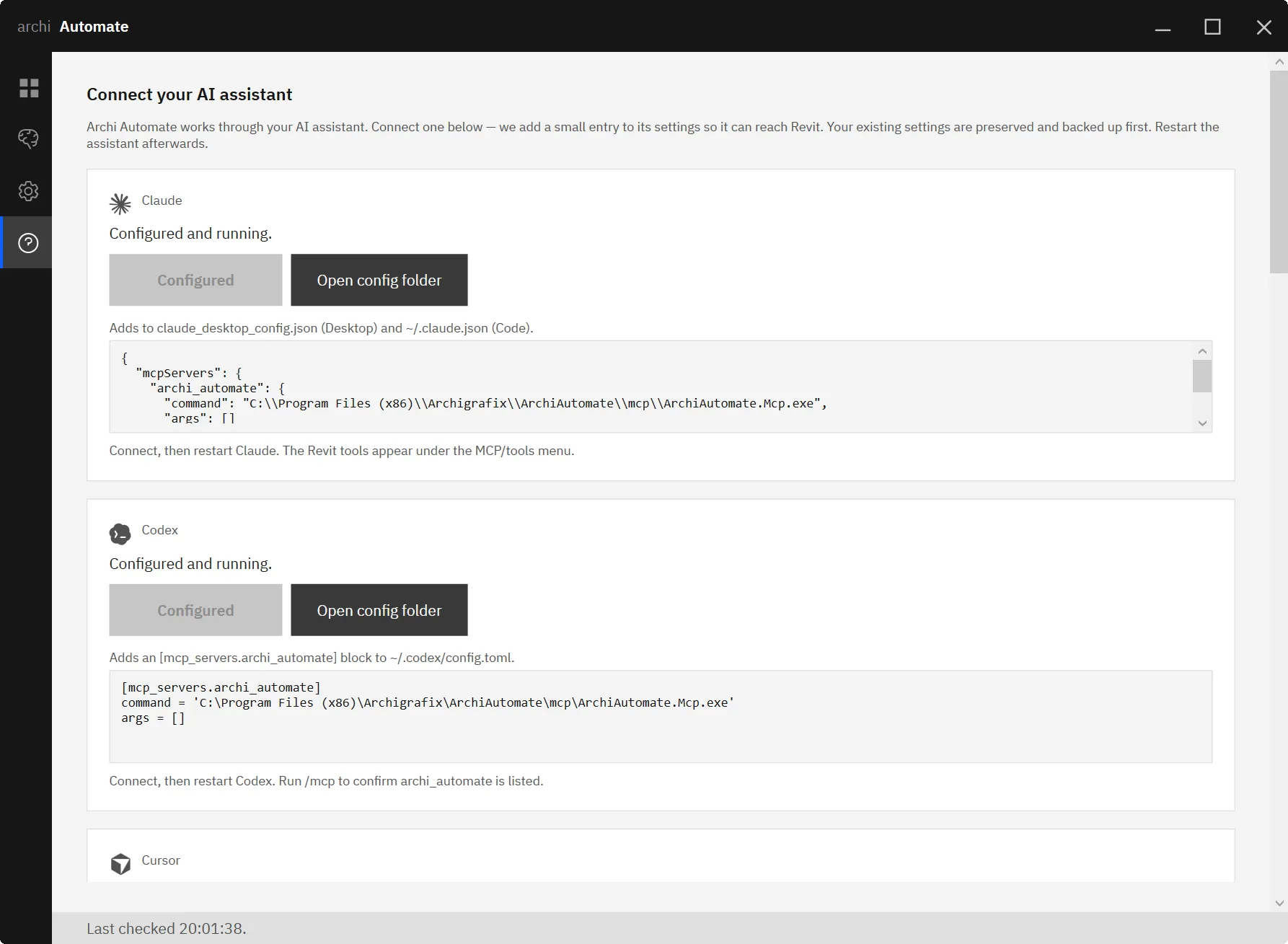
Step three: restart and test. Restart Gemini CLI so it picks up the new configuration, then run a read-only prompt — something like "List the tools you can use" or a simple model query. If it reports back, you're connected. Guardrails default to Read only, so this first prompt can't change anything.
JetBrains IDEs use a small snippet instead of one-click, and any MCP-compatible client can be wired up manually — but Gemini CLI is one of the eight one-click clients, alongside Claude (Desktop & Code), OpenAI Codex, Cursor, VS Code (Copilot agent), Windsurf, Antigravity, and Cline.
What you can ask, per host
openBIM (IFC · IDS · BCF) — the terminal's sweet spot
The headless openBIM connector is where Gemini CLI earns its keep. No CAD app, no license — just point it at files. Because the CLI lives in your terminal, you can fold these checks into scripts and run them across a whole folder of models. Try:
- "Open this IFC and validate it against my IDS." — federate one or more IFC files and check them against your Information Delivery Specification.
- "Estimate embodied carbon by material." — a quick estimate to compare options, not a certified LCA.
- "Run clash detection between the structural and MEP models."
- "Give me a quantity take-off by element type."
- "Author a BCF issue for every wall that fails the fire-rating rule."
Model edits are previewable; writing files back to disk needs Allow changes. For a deeper tour, see MCP for IFC and openBIM.
Revit (Autodesk® Revit® 2025–2027)
With Revit open, Gemini composes governed operations across the Revit API at runtime. Start read-only: "How many rooms are on Level 2?" or "List every wall type used in the model." When you're ready to change something, switch a guardrail and ask Gemini to renumber rooms, tag elements, or set a parameter across a selection. More examples live in MCP for Revit.
Rhino (Rhino 8, McNeel)
Rhino works the same way — read first, then write. "List the layers." is a perfect first prompt. Writes in Rhino are wrapped in a managed Undo, so anything Gemini changes can be rolled back with one Ctrl+Z. Ask it to reorganize layers, report on block instances, or generate geometry once you've allowed changes. See MCP for Rhino.
Archicad (Archicad 29, Graphisoft)
Archicad connects through a first-party add-on with a curated command set: it can read freely, and create, move, or delete Walls, Columns, Slabs, and Objects. Because the command set is curated, there's no dynamic code and no dry-run preview for Archicad — so writes go straight through and require Allow changes. Try "Create a wall between two points." with that guardrail on. Read-only prompts like "How many columns are on the ground floor?" work any time.
Working across programs in one conversation
One of the quieter strengths here is that a single Gemini CLI session can talk to every connected host at once. You might validate a federated IFC model, then ask Gemini to check whether the Revit model matches the same level naming, then jot a BCF note for the discrepancies — all in one terminal conversation. The Hub routes each tool call to the right host automatically. There's no background app-to-app sync happening; Gemini simply queries each host as your prompt requires, which keeps the whole thing transparent and easy to audit.
Safety and guardrails
Every operation is screened against the active guardrail before it runs. Read only is the default and lets Gemini inspect without touching anything. Preview changes does a dry run so you can see what would happen before committing — available for Revit, Rhino, and openBIM model edits, but not for Archicad or file writes, which have no preview. Allow changes lets approved operations through. Deletes can be blocked outright, every session is audited, and Archi Automate never auto-saves — nothing is written to disk behind your back. This matters doubly for a CLI client, where it's tempting to script aggressively: keep scripted runs in Read only or Preview until you've reviewed the output.
Other clients and hosts
Gemini CLI is one of many. If you also work in other tools, the same one-click flow connects Claude (Desktop and Code), OpenAI Codex, and Antigravity, among others. Each host has its own deep-dive: Revit, Rhino, and openBIM.
Try it
The fastest way to understand Gemini CLI plus live BIM is to run a read-only prompt against your own model. Download the 14-day full trial — no key required — and connect in three clicks: Start your Archi Automate trial.











