
How to Connect OpenAI Codex to Revit, Rhino and Archicad (MCP)

Short answer: To connect OpenAI Codex to Revit®, Rhino, Archicad® and openBIM, install Archi Automate (one Windows 10/11 x64 installer), open the Hub, go to the LLMs page and click Connect next to OpenAI Codex. The Hub writes the Model Context Protocol (MCP) configuration into Codex for you, backing up your existing config and merging non-destructively. Restart Codex, start in Read-only mode, and ask it something simple like "How many rooms are on Level 2?" — Codex reads your live Revit model and answers. Setup takes about a minute and the 14-day trial needs no key.
OpenAI Codex is OpenAI's agentic coding assistant, and it speaks MCP — the open protocol that lets an AI client call external tools. Archi Automate is "AI for AEC": it exposes your live CAD/BIM hosts as MCP tools so Codex can query and (when you allow it) edit real geometry instead of guessing from screenshots or pasted exports. This guide leads with Revit because it is the headline host here, then covers Rhino, Archicad and IFC.
How Codex talks to your model
It helps to picture the chain. Codex never touches your CAD application directly. Instead, the request flows like this:
- You type a prompt into Codex (for example, an audit of every door in the model).
- Codex decides it needs live model data and calls the matching MCP tool.
- The Hub bridge receives that call and hands it to the right host — Revit, Rhino, Archicad or the headless openBIM connector.
- The host runs the operation against the live model and returns structured results back up the chain.
For Revit and Rhino, the AI composes governed operations at runtime across the host API, so it can answer questions the host vendor never shipped a button for. Archicad uses a first-party add-on with a curated command set, and openBIM runs as a headless connector with no CAD application required. In every case the model is the source of truth — Codex reads what is actually there.
Before you start
- Windows 10 or 11, 64-bit, with Archi Automate installed from the single bridge installer.
- OpenAI Codex installed and signed in. Use a capable model tier — GPT-5.5 (High) or better is recommended, since reasoning over building data benefits from the stronger model.
- The host you want to drive open and running: Revit 2025–2027, Rhino 8, or Archicad 29. For openBIM you only need an IFC file — no CAD app or license.
- Open the Hub and check the Bridges page: the status dot for your host should be green before you connect.
Connect in three steps
1. Open the Hub LLMs page
Launch the Archi Automate Hub and open the LLMs page. This is where every supported AI client is listed with a one-click Connect button. Codex sits alongside Claude (Desktop & Code), Cursor, VS Code (Copilot agent), Windsurf, Antigravity, Gemini CLI and Cline.
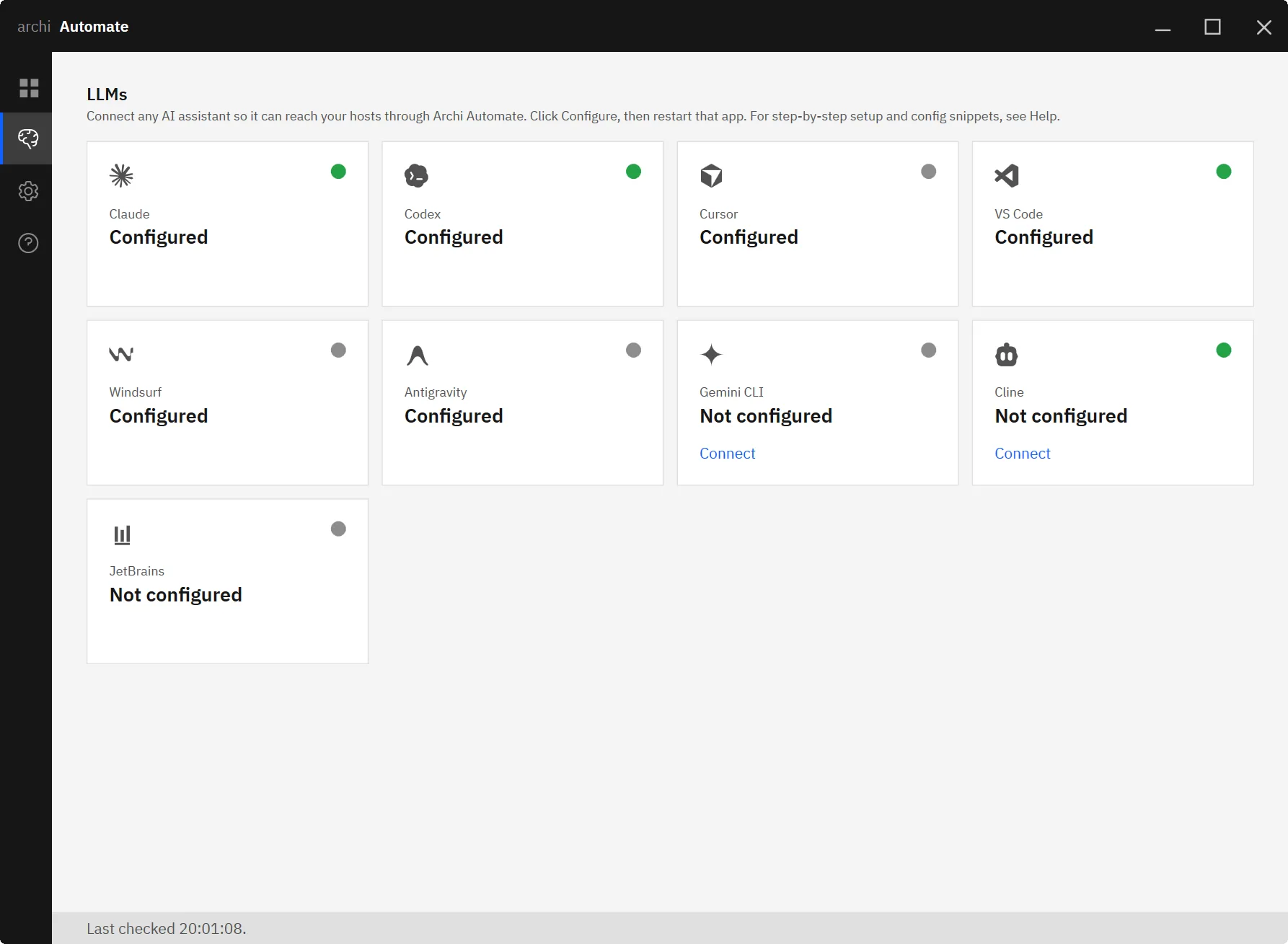
2. Click Connect next to OpenAI Codex
Find OpenAI Codex in the list and click Connect. The Hub writes the MCP server configuration straight into Codex's config file. It backs up whatever is already there and merges the new entry non-destructively, so any MCP servers you already use stay intact. There is no JSON to hand-edit, no port to remember and no path to paste.
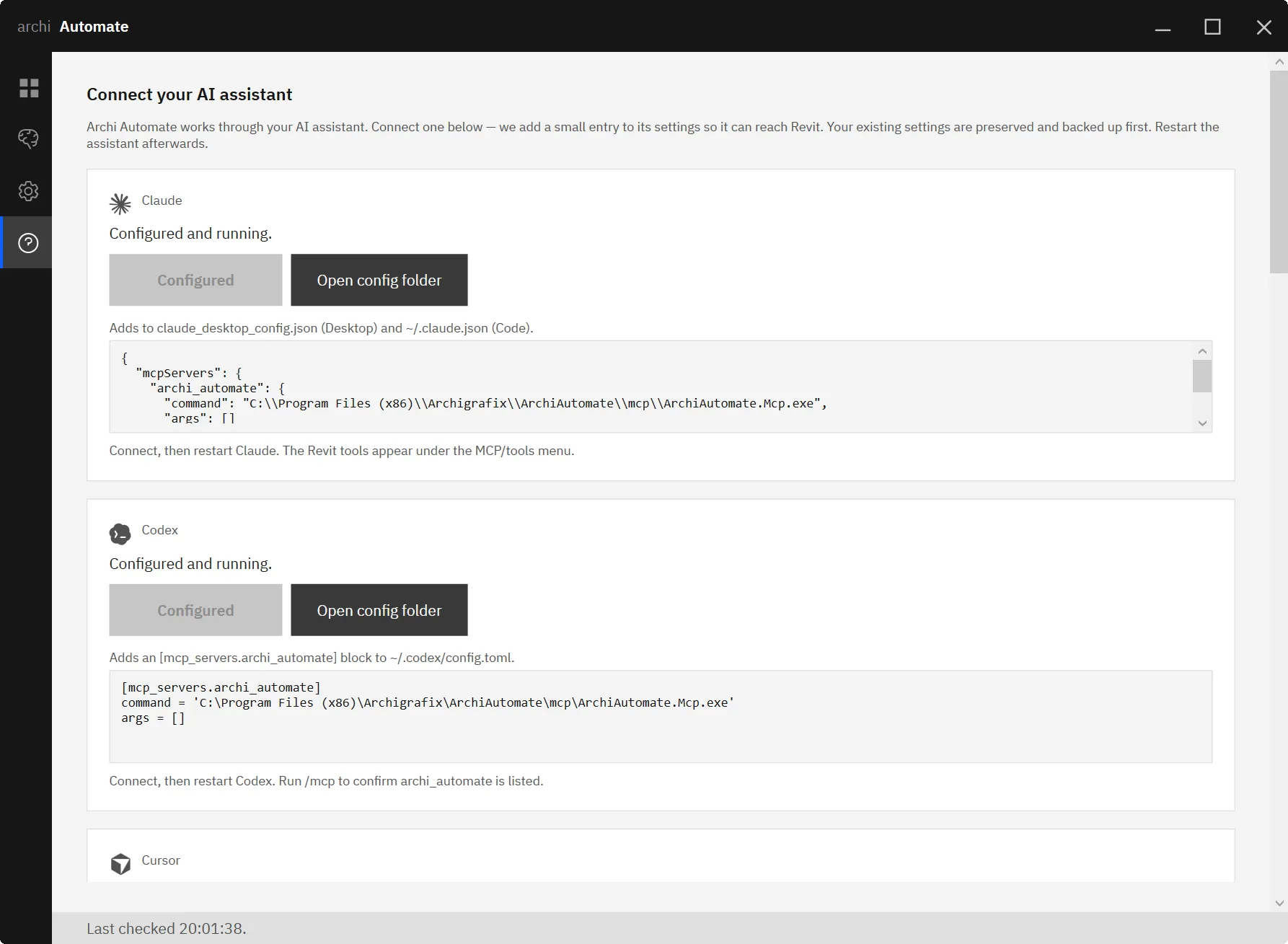
3. Restart Codex and run a read-only prompt
Restart Codex so it picks up the new MCP server. Leave the Hub guardrail on Read only for your first run — it refuses any write — and ask something harmless against your open Revit model, such as "How many rooms are on Level 2?" When Codex answers with real numbers from your model, the bridge is live.
What you can ask, per host
Once connected, the same Codex conversation can reach any running host. Here is where to start with each.
Revit
Revit is where most teams get the fastest payback, because so much of the value is locked in parameters and relationships that are tedious to audit by hand. Try:
- "How many rooms are on Level 2?" — a quick read to confirm the connection.
- "Audit every door for a fire-rating parameter and list those missing it." — exactly the kind of repetitive compliance sweep Codex is good at, returning a clean list of offenders instead of you clicking through schedules.
Because the AI composes governed operations at runtime, you are not limited to a fixed menu of queries — you can phrase the question in plain English and let Codex figure out how to interrogate the model.
Rhino
For Rhino 8, start with a simple read like "List the layers." to confirm the bridge, then move to geometry questions. When you graduate to edits, every Rhino write is wrapped in a managed Undo, so a change Codex makes is a single step you can roll back.
Archicad
Archicad 29 connects through a first-party add-on with a curated command set: it can read the model and create, move or delete Walls, Columns, Slabs and Objects. There is no dynamic code and no write preview here, so writes require the Allow changes guardrail. With that set, try "Create a wall between these two points." and Codex will issue the governed command.
IFC / openBIM
The openBIM connector is headless — no CAD app, no license. Point it at an IFC file and Codex can open and federate models, run clash detection, do quantity take-off, estimate embodied carbon, take snapshots and author BCF issues. A strong opener is "Validate this IFC against my IDS." — Codex checks the model against your Information Delivery Specification and reports what fails. Model edits are previewable; writing files back out needs Allow-changes.
Working across programs in one conversation
Because every host shows up as tools in the same Codex session, you can move between them without switching apps. Ask Codex to pull a room count from Revit, cross-check a layer in Rhino, then validate a federated IFC against your IDS — all in one thread, with Codex keeping the context. That is the real advantage of the MCP approach: the model data comes to the assistant, rather than you exporting and re-importing between tools.
Safety and guardrails
Archi Automate is built to be safe by default. The Hub exposes three guardrail modes:
- Read only (default) — Codex can query but every write is refused. Start here.
- Preview changes — a dry-run that shows what a write would do before committing. Note this does not apply to Archicad commands or to file writes.
- Allow changes — required for Archicad writes and for writing files out of the openBIM connector.
Every operation is screened, deletes can be blocked, and sessions are audited so you have a record of what ran. The bridge never auto-saves — committing changes to disk is always your call. In practice, you keep Codex on Read only while exploring and only step up to Allow changes for a specific, deliberate edit.
Connect a different client or host
Prefer a different assistant, or want to go deeper on one host? These guides walk through each path:
- Connect Claude to Revit, Rhino and Archicad
- Connect Cursor to your CAD and BIM models
- Connect Gemini CLI to AEC tools
- MCP for Revit: what you can automate
- MCP for Rhino: a practical guide
- MCP for IFC and openBIM
Any of the eight one-click clients connect the same way; JetBrains uses a snippet, and any other MCP client works too.
Ready to try it? Install the bridge, click Connect next to Codex on the LLMs page, and put your live Revit, Rhino, Archicad and IFC models in reach of OpenAI Codex. Start your 14-day free trial — full features, no key required.











