
How to Connect Cursor to Revit, Rhino and Archicad (MCP)

Short answer: Yes—Cursor can drive your live Revit, Rhino and Archicad models, plus vendor-neutral openBIM data, through Archi Automate. Install the one Windows bridge, open the Hub, and click Connect next to Cursor on the LLMs page. The Hub writes the Model Context Protocol (MCP) configuration into Cursor for you, you restart the editor and pick a capable model, and from then on you can ask Cursor in plain English to inspect layers, count rooms, move columns or hunt clashes—while guardrails keep every change under your control.
Cursor, the AI code editor from Anysphere, started life as a place to write software. But because it speaks MCP, it can also talk to things that aren't code at all—including the CAD and BIM applications running on your desk. Archi Automate ("AI for AEC") is the bridge that makes that possible, connecting AI clients to live design tools through MCP. This guide walks through connecting Cursor to Autodesk® Revit®, Rhino 8 (McNeel) and Archicad 29 (Graphisoft), with openBIM (IFC · IDS · BCF) along for the ride.
How Cursor talks to your model
It helps to picture the chain. Cursor is an MCP-capable editor: it can act as an MCP client, sending requests to external servers that expose tools. Archi Automate runs the server side. The full path looks like this:
Cursor (you type a request, the model decides what to do) → MCP (the open protocol that carries the request) → Archi Automate's bridge (the local host that holds your guardrail settings) → your CAD/BIM app (Revit, Rhino or Archicad running on the same machine, or the headless openBIM connector for IFC).
The important part: Cursor never reaches into your model directly. It asks Archi Automate, which composes governed operations at runtime against the host's own API and returns the result. Nothing executes that your guardrails haven't allowed.
Before you start
- Windows 10/11 x64, where your design apps live.
- The Archi Automate installer—one download covers Revit 2025–2027, Rhino 8, Archicad 29 and openBIM. The 14-day full trial needs no key.
- Cursor installed and signed in.
- The host you want to drive open and running (Revit with a model loaded, Rhino with your file, Archicad with the first-party add-on enabled). For IFC work you don't need any CAD app—the openBIM connector is headless.
Connect Cursor in three steps
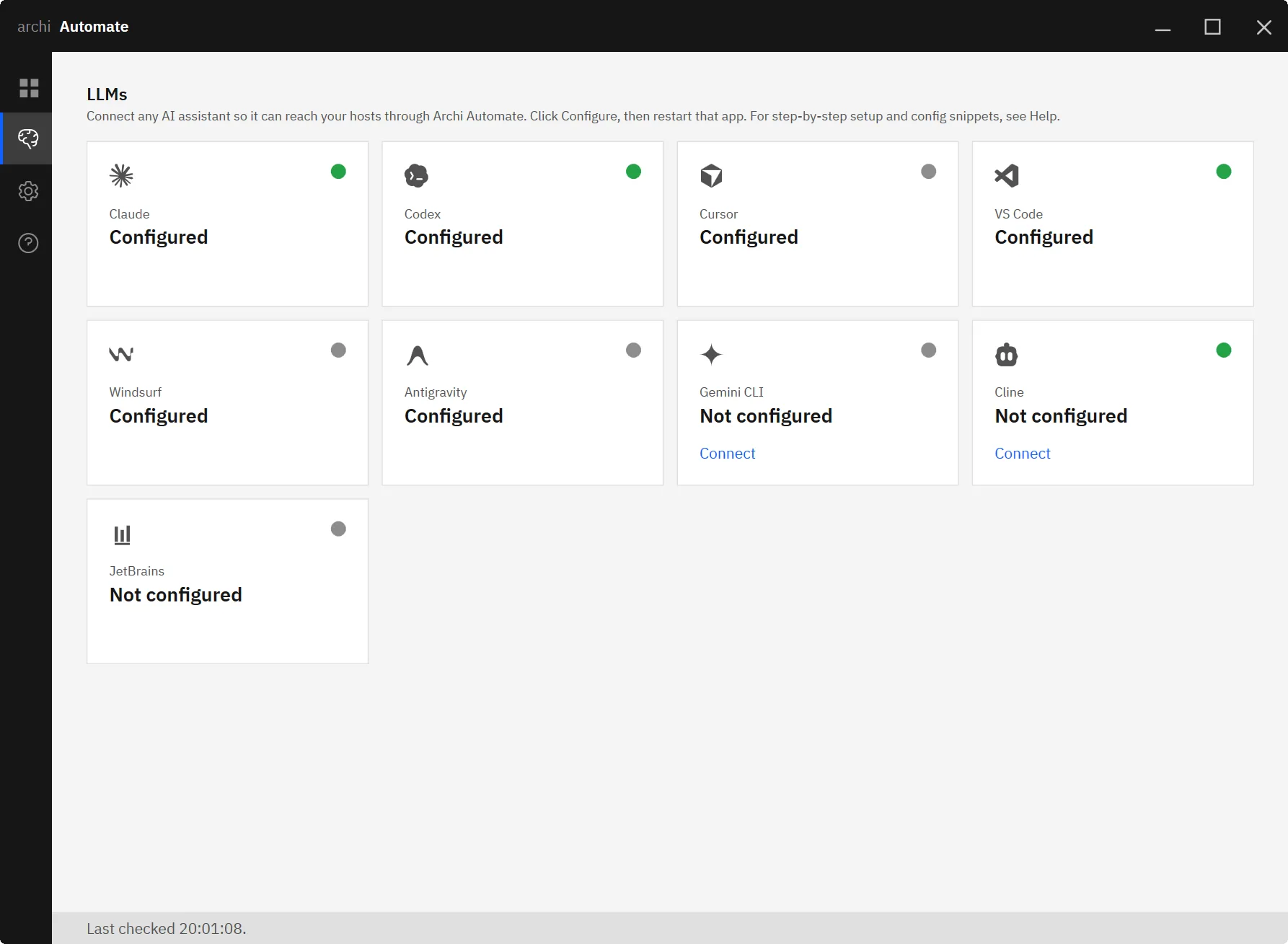
1. Open the Hub and go to LLMs
Launch the Archi Automate Hub. It has four pages—Bridges (where status dots show which hosts are live), LLMs, Guardrails and Help. Open the LLMs page; this is where every supported AI client gets wired up with a single click.
2. Click Connect next to Cursor
Find Cursor in the list and click Connect. The Hub writes the MCP configuration straight into Cursor for you—it backs up any existing config first and does a non-destructive merge, so nothing you've already set up gets clobbered. No JSON to hand-edit, no file paths to hunt down.
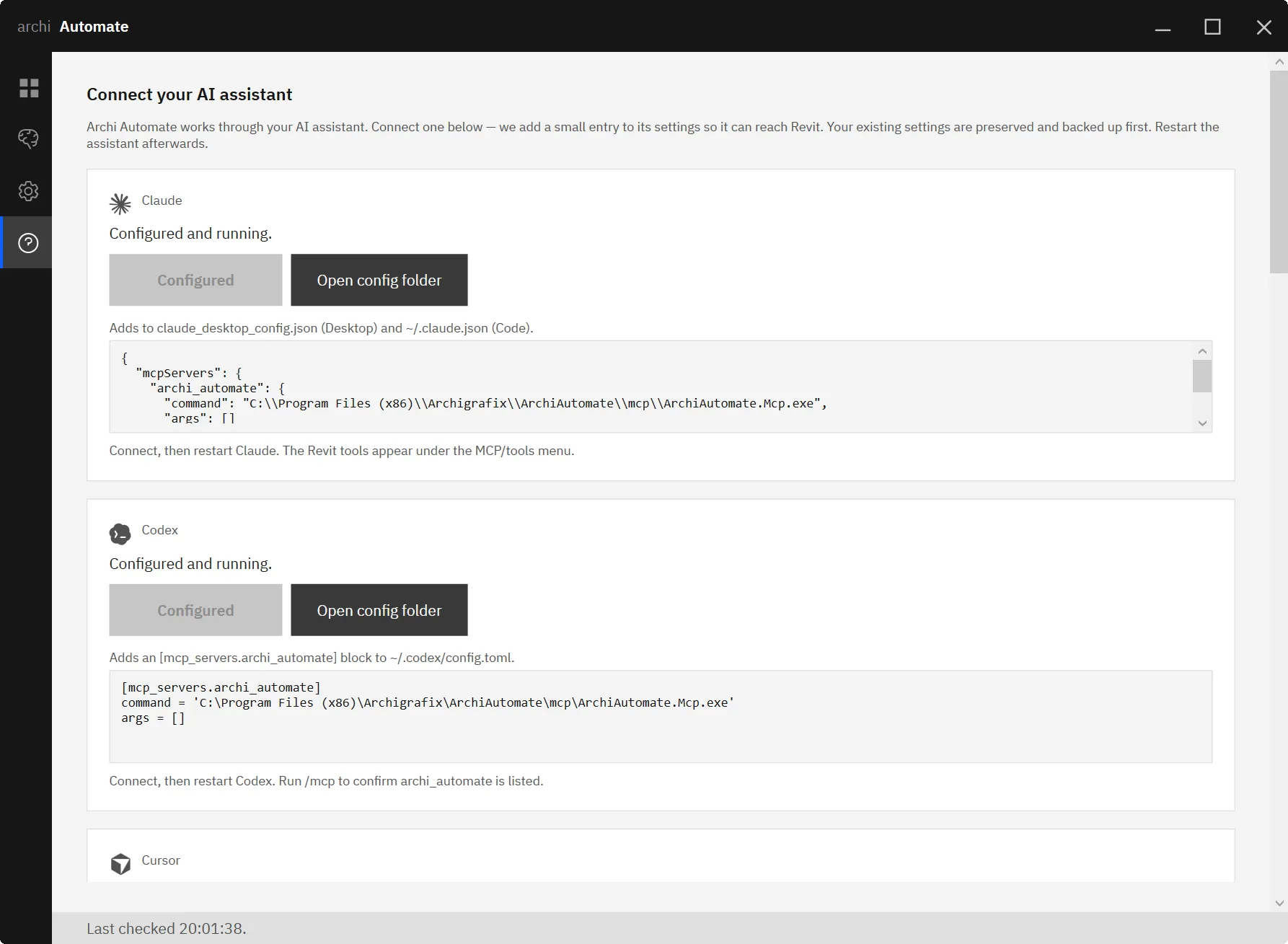
3. Restart Cursor, pick a strong model, run a read-only prompt
Restart Cursor so it picks up the new server. Then choose your model. In Cursor you select which model handles the conversation, and that choice matters here: composing reliable operations against a CAD API rewards a capable model, so pick a strong one—Claude Opus 4.8 High, GPT-5.5 High, or better. Start with something read-only to confirm the link, like asking Rhino to list its layers. If you get an answer back, you're connected.
Cursor works with one click; eight clients do, in fact—Claude (Desktop and Code), OpenAI Codex, Cursor, VS Code's Copilot agent, Windsurf, Antigravity, Gemini CLI and Cline. JetBrains uses a small snippet, and any other MCP client works too.
What you can ask, per host
Rhino 8
Rhino is the most fluid host to explore with, because Archi Automate composes operations at runtime across the Rhino API and wraps any writes in a managed Undo. Try:
- "List the layers in this file."
- "Collect every closed Brep on the FACADE layer and report its volume."
That second prompt is the kind of thing that would normally mean a scripting session—here Cursor reasons about it, asks Archi Automate to gather the geometry and runs the measurement, then reports back. Because writes go through a managed Undo, anything that does change the document is a single step away from being reversed.
Autodesk® Revit®
Revit works the same way: AI composes governed operations at runtime across the Revit API. Good starting prompts:
- "How many rooms are on Level 2?"
- "List every wall type used in the model and how many instances of each."
Read-only questions like these are perfect for getting a feel for what Cursor can see before you ever turn on changes.
Archicad 29
Archicad is handled by a first-party add-on with a curated command set. It can read freely, and it can create, move or delete Walls, Columns, Slabs and Objects—but only those, and only through that fixed set of commands. There's no dynamic code and no dry-run preview on Archicad, so a change either runs or it doesn't. Anything that writes needs Allow-changes switched on. For example, with Allow-changes active:
- "Move the selected columns 500 mm east."
- "Create a wall between these two points." (curated commands only)
openBIM (IFC · IDS · BCF)
The openBIM connector is headless—no CAD app, no license. It opens and federates IFC models, validates against IDS, runs clash detection, does quantity take-off, estimates embodied carbon, captures snapshots and authors BCF issues. Model edits can be previewed; writing files needs Allow-changes. Ask:
- "Federate the architectural and structural models and find clashes."
- "Validate this IFC against our IDS and list every failure."
Working across programs in one conversation
Because every host is exposed through the same MCP connection, you can move between them in a single Cursor chat. Pull a room count from Revit, federate the matching IFC exports and look for clashes, then jump into Rhino to check a facade volume—without leaving the conversation or rewiring anything. There's no background app-to-app sync happening; each request runs when you ask for it, against whichever host you name, and the results come back into the same thread so you can reason across them.
Safety and guardrails
Cursor is enthusiastic, so the guardrails matter. Archi Automate gives you three modes, set in the Hub:
- Read only (the default)—the AI can inspect everything and change nothing. This is where you should start.
- Preview changes—a dry-run that shows what would happen before committing. Note this is not available for Archicad or for file writes, where there's no preview stage.
- Allow changes—writes actually execute. Required for any Archicad edit or openBIM file write.
Underneath, every operation is screened, deletes can be blocked outright, sessions are audited, and Archi Automate never auto-saves—so the decision to commit anything to disk always stays with you. The sensible workflow is to explore in Read only, switch to Preview to sanity-check a change where preview is supported, and only then move to Allow changes.
Other clients and hosts
Prefer a different editor or want to go deeper on one host? These guides cover the rest of the lineup:
- Connect Claude to AEC
- Connect OpenAI Codex to AEC
- Connect VS Code to AEC
- MCP for Rhino
- MCP for Revit
- MCP for IFC / openBIM
Get started
Connecting Cursor to your CAD and BIM tools takes about as long as installing the bridge and clicking once. Download the 14-day full trial of Archi Automate—no key required—wire up Cursor on the LLMs page, pick a strong model, and start asking your models questions.











