
Automate Archicad Elements with AI

Short answer: You can automate Archicad elements with AI by connecting an AI client (Claude, Codex, Cursor, VS Code, Windsurf, Antigravity, Gemini CLI, Cline, or any MCP client) to Archicad® 29 (Graphisoft®) through Archi Automate. The Archicad bridge drives a first-party native add-on that exposes a curated, governed command set: read elements by type, and create, move, copy, or delete walls, columns, slabs, and objects. Writes apply directly in Allow-changes mode and live in your open project until you save.
Drawing the same wall types, copying columns onto a grid, or cleaning up stray objects is the kind of repetitive modelling work that eats hours. With AI for AEC, you describe what you want in plain language and the assistant composes governed operations at runtime against the model you have open. This guide explains exactly what you can automate in Archicad today, the precise command set behind it, and the honest limits you should know before you let an assistant touch live geometry.
What you can automate in Archicad with AI
Archi Automate connects your AI client to Archicad over MCP (Model Context Protocol). On the read side, the assistant can collect and inspect the elements in your project so it understands what it is working with. On the write side, it can create new structural and modelling elements, reposition or duplicate them, and remove the ones you no longer need. Everything happens inside the project that is open on screen, not against a copy or an export.
Typical jobs people hand to AI in Archicad include sketching wall runs between known points, placing or copying columns, dropping in slabs from simple geometry, nudging a selection by an exact distance, and deleting elements that a query has already identified. Because the assistant reads the model first, it can target the right elements by type before it changes anything.
The curated command set
The Archicad bridge does not run arbitrary code. Instead it drives a first-party native add-on inside Archicad 29 that exposes a deliberately small, governed set of commands. That curation is the whole point: every operation is predictable, bounded, and auditable.
The command set covers:
- Reads: collect elements by type — Wall, Slab, Column, Object — to inspect and identify what is in the model.
- Create: build a Wall, Column, or Slab from geometry, with measurements in metres.
- Move and copy: translate or duplicate elements by a vector you specify.
- Delete: remove elements by their GUID, so the assistant deletes exactly what was identified and nothing else.
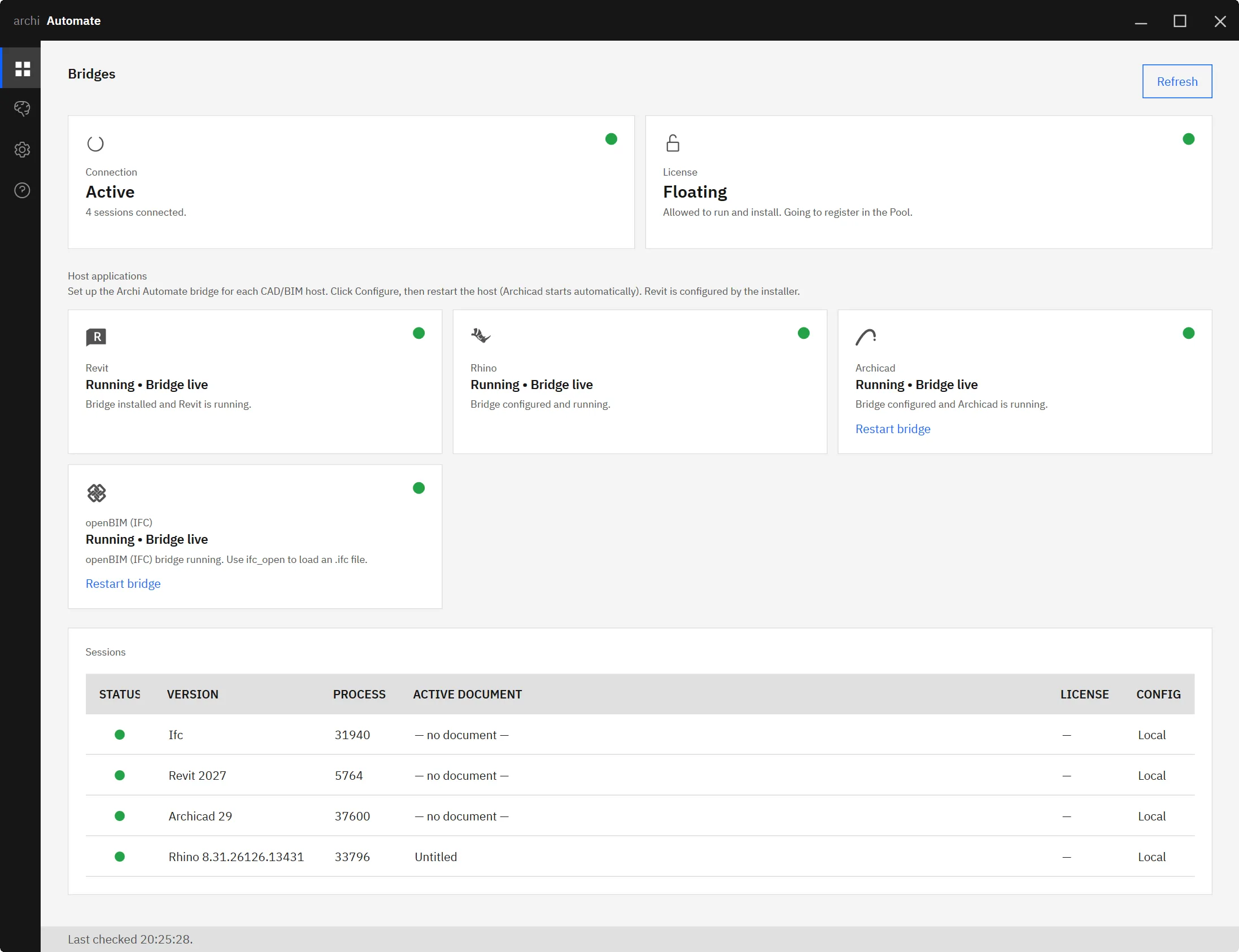
Reads work even if the native add-on is not installed, so an assistant can still describe a model it can open. But creating elements and identifying them by GUID needs the add-on present. Once the assistant has read the model, it can act on it with the create, move, copy, and delete commands above.
Example prompts
Reads are always available. Writes require Allow-changes mode to be on. Useful prompts look like this:
- "List every wall and column in the active project so I can see what's here." (read, any time)
- "Create a wall between these two points." (write, Allow-changes)
- "Move the selected columns 500 mm east." (write, Allow-changes)
- "Copy this slab 6 metres north to start the next bay." (write, Allow-changes)
- "Delete these objects." (write, Allow-changes)
Because geometry is handled in metres, you can phrase distances naturally and the assistant translates them into the exact vector the command needs. The model identifies elements first, then acts on the specific GUIDs it found.
Why curated, not dynamic code
A common worry with AI in design tools is that an assistant might generate unpredictable scripts that do something you never intended. Archi Automate avoids that by design. The Archicad bridge does not write or run dynamic code — it composes governed operations at runtime from a fixed, curated vocabulary. Every action maps to one of the known commands, so the surface area is bounded and the behaviour is easy to reason about.
That makes the workflow predictable and auditable. You can see what was read, what was created, what moved, and what was deleted, because each step corresponds to a defined operation rather than an opaque block of generated logic. For production BIM work, that boundedness is a feature, not a limitation.
Be honest: writes apply directly
Here is the limit you must respect. On Archicad, there is no write preview and no dry-run. When Allow-changes mode is on, writes apply directly to the live project — create, move, copy, and delete all take effect immediately and persist in the open document until you save.
So treat Allow-changes as a deliberate switch, not a default. Turn it on when you are ready for the assistant to modify geometry, and keep it off while you are exploring or letting the AI read and reason. Save points are your safety net here: because changes live in the open project until you save, you control when they become permanent on disk. If you want the assistant to plan a change before committing, ask it to read and describe the elements first, review its plan, then enable Allow-changes for the write.
If you want a broader sense of how AI safety works across BIM models, see is it safe to let AI into your BIM model.
Setup note
To create and identify elements, install the native add-on for Archicad 29 and restart Archicad so it loads. The add-on ships in the same one Windows installer as the rest of Archi Automate — there is no separate download. Reads will work without it, but you will not be able to create elements or delete them by GUID until it is installed and Archicad has been restarted. Connecting your AI client itself is a one-click step on the Hub LLMs page.
Beyond walls and slabs
Element automation is one part of a larger Archicad-and-AI workflow. To understand the full bridge — how MCP exposes Archicad to your assistant and what else it can do — read the pillar guide on MCP for Archicad. If you are setting up the assistant side, connect Claude to your AEC tools walks through the client. And if your studio runs more than one platform, one AI across Revit, Rhino and Archicad shows how the same assistant spans Autodesk® Revit® 2025–2027, Rhino 8 (McNeel) and Archicad, with MCP for Revit covering the Revit side in depth.
Archi Automate is one Windows installer with a 14-day trial and no key required. Get AI for AEC and start automating Archicad elements.










