MCP for Archicad: Connect AI to Archicad 29 with Archi Automate

Short answer: To use MCP with Archicad, install Archi Automate on Windows (it sets up the Archicad bridge and a first-party native add-on inside Archicad 29), open the Hub, click Connect next to your AI client on the LLMs page, and restart the client. Your AI assistant — Claude, Codex, Cursor and others — can then read your Archicad model and, when you allow it, create, move and delete elements. Archi Automate connects AI clients to Archicad through the Model Context Protocol (MCP), so plain-language prompts drive real, governed actions in the open project.
Archicad, by Graphisoft, is one of four hosts that Archi Automate bridges — alongside Autodesk® Revit® 2025–2027, Rhino 8 (by McNeel) and vendor-neutral openBIM (IFC, IDS, BCF). This guide is the Archicad pillar: what an MCP setup for Archicad actually does, how the chain fits together, how to connect a client, and what you can safely ask.
What an MCP setup for Archicad does
The Model Context Protocol is an open standard that lets an AI client call external tools through a consistent interface. On its own, an AI assistant can talk about your building but cannot touch it. MCP changes that: it gives the model a defined set of operations it can invoke against a live application.
Archi Automate is the MCP server for the AEC desktop. With it running, your AI client gains a curated set of Archicad operations — reading what is in the model and, when you permit it, creating and editing elements. You ask a question or give an instruction in natural language; the model translates that into governed operations that execute inside your open Archicad 29 project. Nothing leaves your machine to make this work, and no cloud host is involved.
The chain: client to model
It helps to picture the path a request travels:
- AI client (Claude Desktop, Cursor, VS Code, etc.) — where you type your prompt.
- MCP — the protocol carrying tool calls between the client and Archi Automate.
- Archi Automate bridge — the Archicad bridge that composes governed operations at runtime and enforces your policy.
- First-party Archicad add-on — a native add-on running inside Archicad 29 that performs the actual reads and edits in your project.
That last link is the part worth understanding. For some hosts, Archi Automate can compose operations more freely. Archicad is deliberately different: the bridge drives a curated, governed command set exposed by the native add-on, not dynamic AI-composed code. The add-on publishes a fixed vocabulary — collect elements by type, create a wall, move by a vector, delete by id — and the AI can only ask for those defined actions. This is a feature, not a limitation. A bounded command set is predictable and auditable: you always know the universe of things the assistant can do to your model, which matters a great deal when those actions modify a live project.
How to connect AI to Archicad 29
The whole setup is one installer and a couple of restarts.
1. Install Archi Automate (including the Archicad add-on)
Download and run the single installer on Windows 10/11 x64. It detects your installed hosts and sets up the matching bridges, including the first-party add-on for Archicad 29. After installation, restart Archicad so it loads the add-on. Reads can work without the add-on, but creating and identifying elements needs it installed — so let the installer finish and relaunch Archicad before you go further. The 14-day trial is full-featured and runs with no key.
2. Check the bridge in the Hub
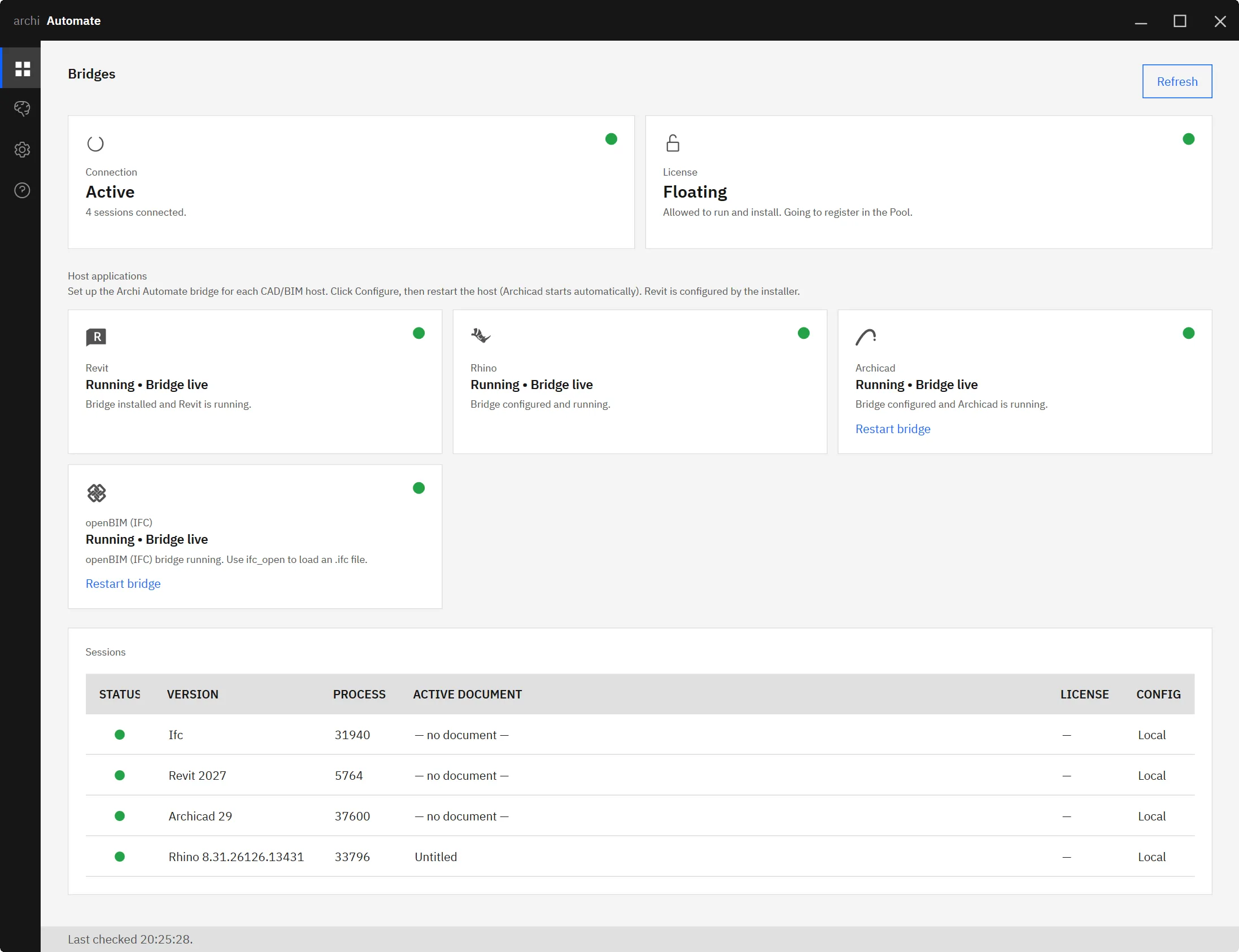
Open the Hub, the desktop control center. Its Bridges page shows a status dot for each host. With Archicad 29 open and the add-on loaded, the Archicad dot should read healthy — that confirms Archi Automate can talk to your model.
3. Connect your AI client
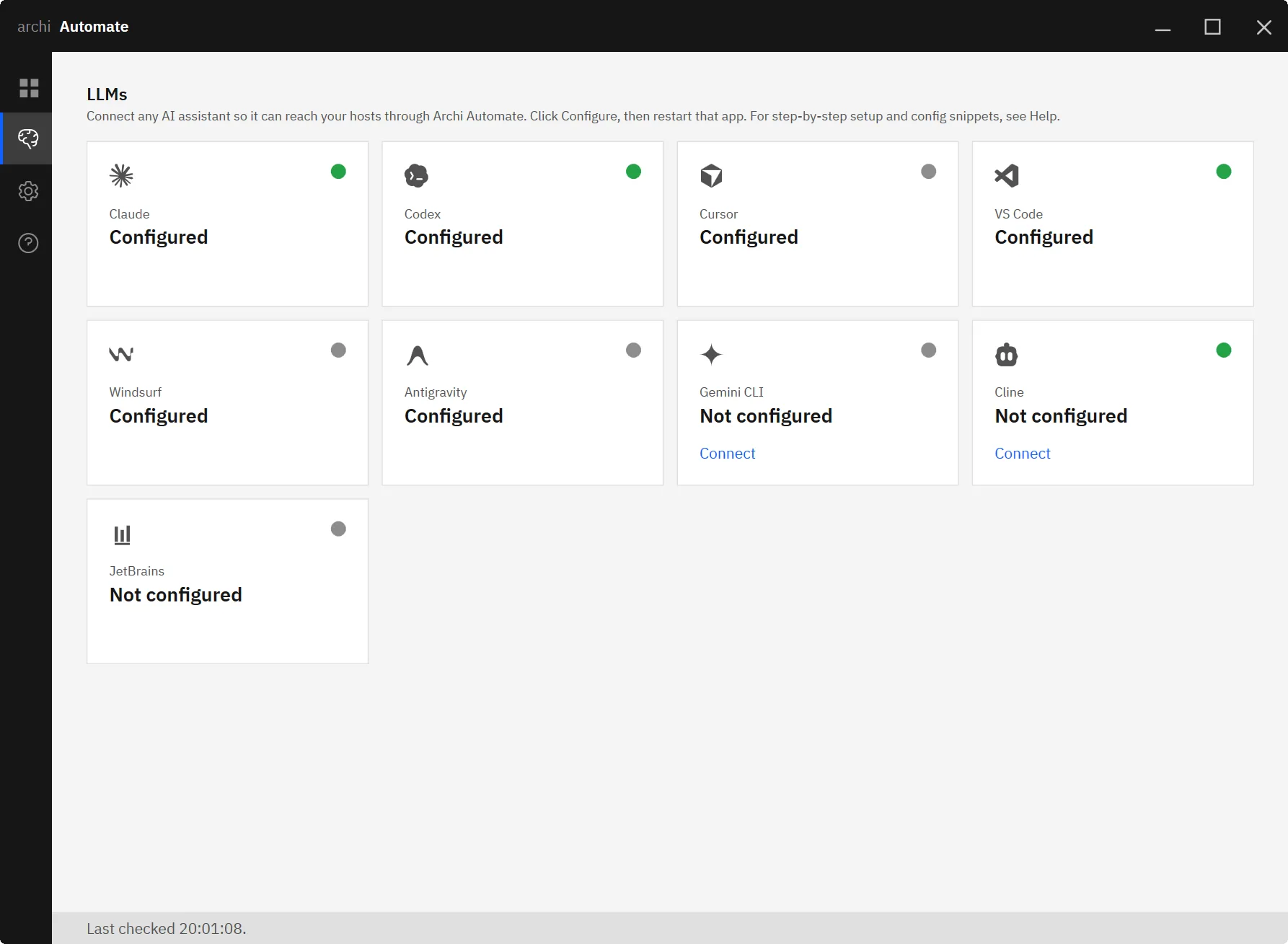
Switch to the LLMs page. You will see your installed AI clients listed, each with a one-click Connect button. Click it. The Hub writes the MCP configuration into that client for you — it backs up the existing config first and does a non-destructive merge, so nothing you already have is overwritten. Then restart the AI client so it picks up the new connection.
4. Run a read-only prompt
Leave Guardrails in the default Read only mode and try something harmless first, like asking how many walls are in the project. A correct answer confirms the full chain — client to MCP to bridge to add-on — is working end to end before you ever allow a write.
Which AI clients connect
Eight clients connect with a single click from the LLMs page: Claude (Desktop and Code), OpenAI Codex, Cursor, VS Code (Copilot agent), Windsurf, Antigravity, Gemini CLI and Cline. JetBrains IDEs connect with a short copy-paste snippet, and because Archi Automate speaks standard MCP, any MCP-capable client works too.
For reliable AI-composed operations, use a strong model tier — Claude Opus 4.8 (High) or GPT-5.5 (High) or better. Weaker models can misread intent, which matters more once you move past read-only mode. There are dedicated walkthroughs for popular clients, including connecting Claude to AEC, connecting OpenAI Codex, and connecting Gemini CLI.
What you can ask in Archicad
The Archicad command set splits into reads and writes.
Reads work as soon as the bridge is connected and are always safe. The add-on collects elements by type — Wall, Slab, Column, Object — so you can ask things like:
- "How many walls are in this project?"
- "List every column by type."
- "Summarize the slabs on this storey."
Writes apply only when you set Guardrails to Allow changes. The curated write commands let the AI create a Wall, Column or Slab; move or copy elements by a vector; and delete elements by id. For example:
- "Create a wall between these two points."
- "Move the selected columns 500 mm east."
- "Delete these objects."
These edits happen directly in your open project and live there until you save — exactly as if you had drawn them yourself.
Be honest about Archicad writes: no dry-run preview
This is the most important thing to understand before you allow changes. For some hosts, Archi Automate offers a Preview changes (dry-run) mode that shows what a write would do before applying it. Archicad does not support write previews. In Allow-changes mode, Archicad writes apply directly — there is no dry-run, no staging step. The element is created, moved or deleted in the live model the moment the operation runs.
So set Allow changes deliberately, not casually. Keep Guardrails in Read only while you are exploring or asking questions, and switch to Allow changes only when you intend for the AI to modify the model and you are ready for those edits to land. Because the changes live in the open project until you save, you still have Archicad's own undo and the choice not to save — but treat every allowed write as a real edit.
Safety and guardrails
Guardrails is a full Hub page, and it governs every host including Archicad. Three execution modes set the boundary. Read only is the default: it refuses all writes, so the AI can only read the model. Preview changes is a dry-run that shows what a write would do before it lands — but it is not available for Archicad, which has no preview stage. Allow changes applies writes, and on Archicad those writes apply directly the moment you allow them.
Beyond the mode, every operation is screened before it runs, deletions can be blocked outright, and every session is written to an audit file so you have a record of what the assistant did. Models are never saved automatically — saving stays a deliberate act in Archicad. Together with the curated command set, this gives you a clear, bounded and logged surface for AI work on a live building model.
Where to go next
If you work across more than one tool, the same Hub bridges them all. See the companion guides for MCP for Revit, MCP for Rhino, and MCP for IFC and openBIM — one install covers every host you have.
Ready to try it on your own project? Start your 14-day free trial — it is full-featured, needs no key, and the Hub will connect your AI client to Archicad 29 in a couple of clicks.