
MCP for IFC and openBIM: Connect AI to IFC, IDS and BCF

Short answer: Connect any MCP-capable AI client to Archi Automate and it can open your IFC files directly, with no CAD application and no host license. The openBIM connector is headless and on-demand: it treats an open IFC model (or a federation of several) as the working session, and gives the AI vendor-neutral tools to read, query, author, validate against IDS, raise BCF coordination issues, detect clashes, take off quantities, estimate embodied carbon, and export COBie, glTF or USDZ. Install once, click Connect on the Hub's LLMs page, restart your client, then just say "open this IFC".
This is the host pillar for connecting AI to vendor-neutral building data. If your team has standardized on IFC, IDS and BCF — or you simply receive IFC from consultants who each use a different authoring tool — this is the page that explains how an AI client reads and acts on that data through the Model Context Protocol (MCP).
Why openBIM is different from a Revit or Rhino bridge
Most AI-to-CAD bridges drive a running desktop application. You open Autodesk® Revit®, Rhino (McNeel) or Archicad (Graphisoft), the AI talks to that live session, and edits land in your open model. That is powerful, but it assumes you own the seat and have the model open.
The openBIM connector works differently. It is headless and on-demand: it needs no CAD application running and no host license at all. The "session" is an open IFC file — or a federation of several IFCs across disciplines. Because IFC is buildingSMART's vendor-neutral schema, the connector works on models exported from any authoring tool: Revit, Archicad, Rhino, Tekla, and more. It is schema-agnostic across IFC2x3, IFC4, IFC4x1 and IFC4x3, so you are not forced onto a single schema version.
This makes openBIM the natural home for the work that happens between tools: federated coordination, quality validation, FM handover, and sustainability reporting — none of which require you to own the seat that produced the geometry. It is honest to say this connector is data- and semantics-first and runs offline: it renders still snapshots and exports glTF, but it has no live 3D viewport.
How AI connects to your IFC files
Archi Automate is an "AI for AEC" platform that connects AI clients to CAD and BIM through MCP. Setup is a single Windows 10/11 x64 installer, with a 14-day full trial and no key required. The platform composes governed operations at runtime, so the AI never touches your files blindly.
Start in the Hub dashboard. It has four pages — Bridges, LLMs, Guardrails and Help.
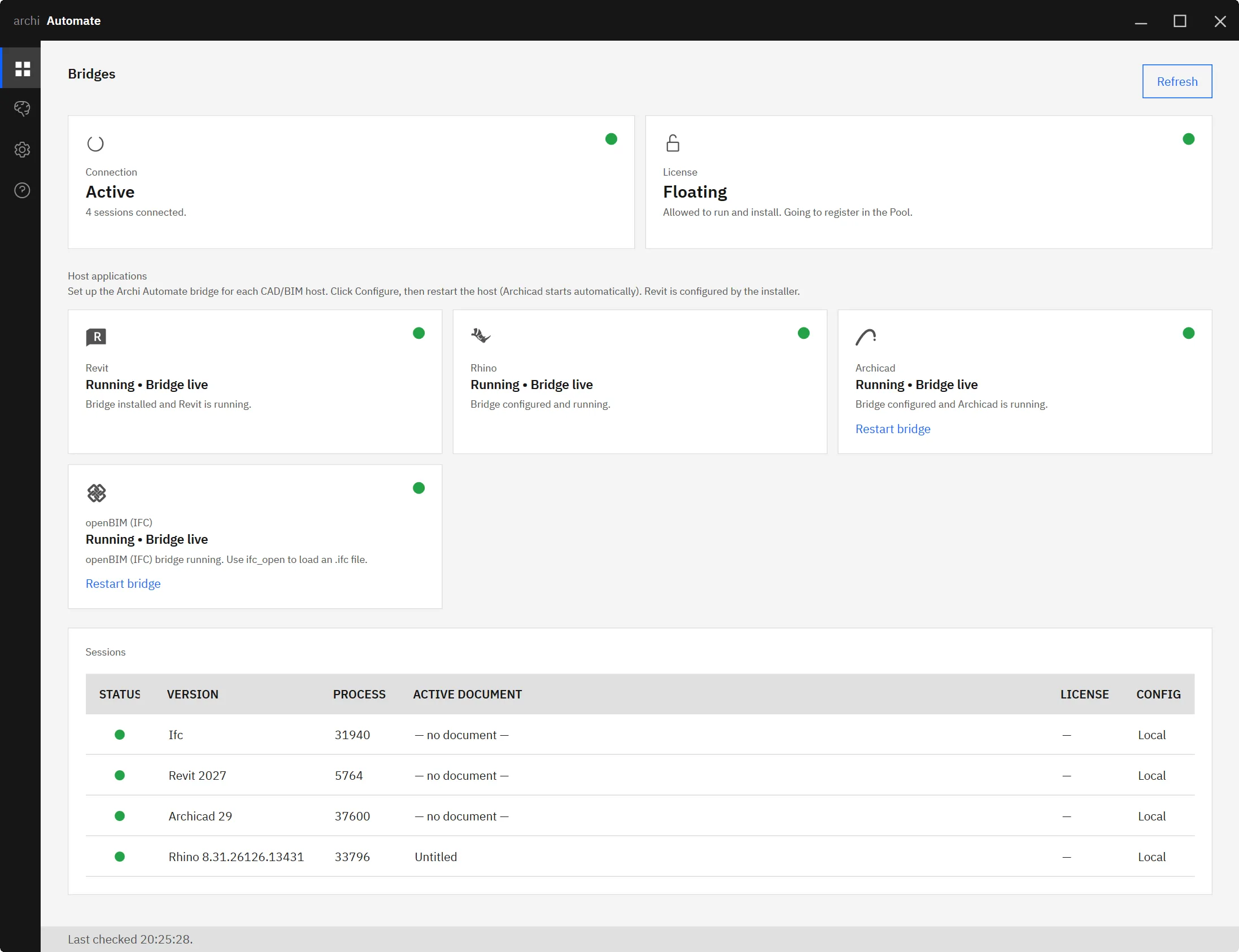
The Bridges page is where the openBIM connector and the application bridges live. Because openBIM is headless, you do not need to launch anything here — the connector is ready to receive an IFC the moment your AI client is wired up.
Wiring up a client is one click. Open the LLMs page, find your client, and press Connect.
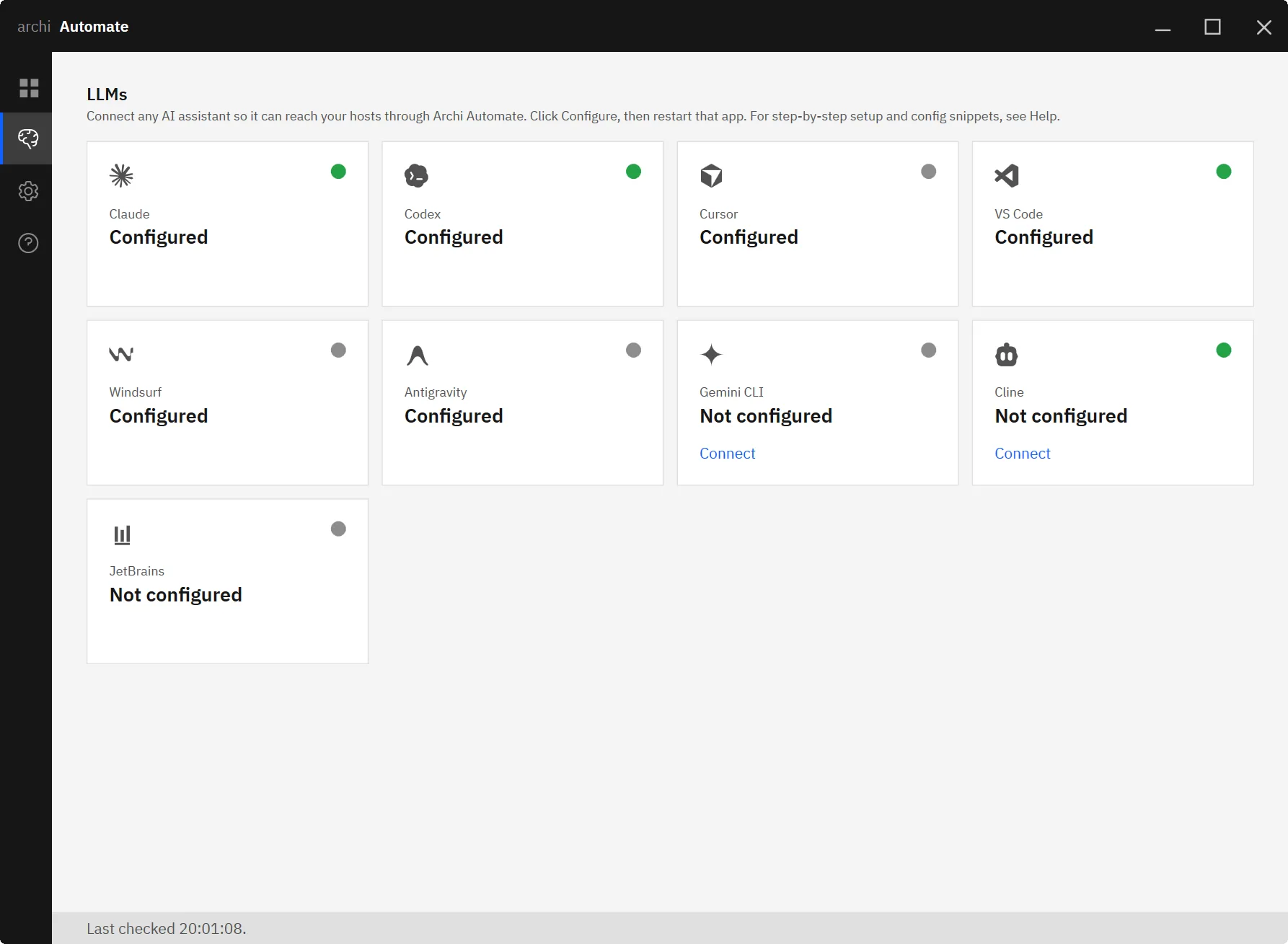
That single click writes the MCP configuration for you automatically: it backs up your existing config and does a non-destructive merge, so nothing you already had is lost. Then restart the client so it picks up the new server. From there, the workflow is conversational — point the AI at a file and say "open this IFC", and it has the whole openBIM toolset at its disposal.
The openBIM trio: IFC, IDS and BCF
Three buildingSMART standards do the heavy lifting, and the connector treats each as a first-class citizen.
IFC — the model itself
The AI can open or federate models, read and query entities, author new content (create and edit entities, properties and classifications), and save the result. It can also render a visual snapshot as a PNG that the AI can actually see — useful for sanity-checking what it is working on. For downstream use it exports COBie (an .xlsx facilities-management handover), glTF (.glb) and USDZ (Apple and web AR).
IDS — the rulebook
IDS is buildingSMART's Information Delivery Specification: a machine-readable way to state exactly what data a model must contain. The connector can validate a model pass/fail against each requirement, run a quick schema health check, search the buildingSMART Data Dictionary (bSDD) for the right classifications, and even author a brand-new IDS from a plain-language specification you describe in chat.
BCF — the conversation
BCF (BIM Collaboration Format) is how coordination issues travel between tools. The AI can read and author .bcfzip issues that any BIM application can open, each carrying an embedded snapshot and saved camera position. The standout capability ties the trio together: a single call validates a model against an IDS and emits one BCF topic per failure — validate to coordinate, with pictures, in one step.
Analysis and sustainability
On top of the trio, the connector offers federation-aware geometric clash detection across disciplines, quantity take-off, classification against Uniclass and bSDD, and embodied-carbon estimation following EN 15978 and EN 15804, with optional live Ökobaudat EPDs when you are online.
Walkthroughs you can run on day one
Here is what these capabilities look like as plain requests to your AI client.
- Validate an IFC against an IDS. "Check this model against our IDS and tell me what fails." The AI runs each requirement and reports pass/fail per rule, so you know immediately whether a delivery meets the brief.
- Federate and clash-detect across disciplines. "Open the architectural, structural and MEP IFCs together and find clashes." The connector federates the models and runs cross-discipline geometric clash detection on the combined session.
- Validate to BCF in one move. "Validate against the IDS and give me a BCF of every failure." One call produces a .bcfzip with a topic per failure, each with a snapshot and camera — ready to open in any BIM tool and assign.
- Estimate embodied carbon. "Give me an embodied-carbon estimate for this model." You get an EN 15978 / EN 15804 estimate with a coverage report. Be clear on what this is: it is an estimate, not a certified or audited LCA, and EPD-grade numbers require the live Ökobaudat source online.
- Export for handover and AR. "Export a COBie spreadsheet and a glTF, plus a USDZ for AR." The connector writes the .xlsx, the .glb and the .usdz so the model can move into FM systems, web viewers, or an Apple AR experience.
Which AI clients work
Eight clients connect with a single click on the LLMs page: Claude (Desktop and Code), OpenAI Codex, Cursor, VS Code (Copilot agent), Windsurf, Antigravity, Gemini CLI and Cline. JetBrains uses a small snippet, and any other MCP-capable client works too. For this kind of multi-step BIM reasoning, use a strong model — Claude Opus 4.8 (High), GPT-5.5 (High), or better.
If you want client-specific setup, see connect Claude to AEC and connect Codex to AEC.
Safety and guardrails
Every operation is screened by the Hub's guardrails before it runs. There are three levels: Read only (the default), Preview changes (a dry-run), and Allow changes. Deletes can be blocked outright, sessions are audited, and nothing is ever saved automatically.
Two specifics matter for openBIM. Model edits — creating or editing entities and properties inside the IFC — can be previewed as a dry-run before you commit. But file-writing tools, meaning saving an IFC, exporting COBie, glTF or USDZ, or saving a BCF, are not previewable and need Allow changes. Start in Read only to explore, switch to Preview to rehearse model edits, and only grant Allow changes when you are ready to write files to disk.
Where to go next
If your work is anchored in a specific authoring tool, the application bridges may suit you better: see MCP for Revit, MCP for Rhino and MCP for Archicad. And if validation is your priority, Revit QA/QC automation shows the same governed approach applied inside a live model.
The openBIM connector is the vendor-neutral counterpart to all of those: one headless engine that reads and acts on IFC from any source, no seat required. Start your 14-day full trial — single installer, no key — and point your AI at its first IFC today.











