
Is It Safe to Give AI Access to Your BIM Model?

Short answer: Yes, it is safe to give AI access to your BIM model, provided you keep control of what the AI is allowed to do. With Archi Automate, that control is built in as layered guardrails: the assistant starts in a read-only mode that refuses every write, you decide when to preview or apply changes, a deny-list screens AI-composed operations before they run, edits happen inside managed transactions that roll back on error, every request is logged, and no model data ever leaves your machine.
The worry is reasonable. Letting a language model touch a live Revit, Rhino, or IFC model sounds like handing the keys to someone who has never driven your car. The honest engineering answer is that safety does not come from trusting the AI to behave. It comes from the permissions, checks, and records that sit between the AI's intent and your model. This post walks through exactly those layers.
For context, Archi Automate is an AI for AEC tool that connects AI clients to Autodesk® Revit® 2025–2027, Rhino 8 (McNeel), Archicad 29 (Graphisoft), and vendor-neutral openBIM (IFC, IDS, BCF) over MCP. It composes governed operations at runtime rather than running free-form code against your authoring tool. One Windows installer gets you a 14-day trial with no key required.
You are always in one of three execution modes
The single most important safety control is the execution mode, and the default is the cautious one.
- Read only is the default. In this mode the assistant can inspect, query, count, and report on your model, but it refuses every write. You can let it explore a project freely and know with certainty that nothing changes. This is where you should start.
- Preview changes is a dry-run. The AI-composed operation actually runs against the model and then rolls back, so you see what would have happened and confirm before committing. Preview is supported for Revit, Rhino, and openBIM model edits. It is not available for Archicad, and it does not apply to file writes.
- Allow changes applies the operation for real. You move here deliberately, once you trust the task in front of you.
You set this mode yourself in the Hub. The AI cannot quietly promote itself from read-only to allow-changes; that decision stays with the human.
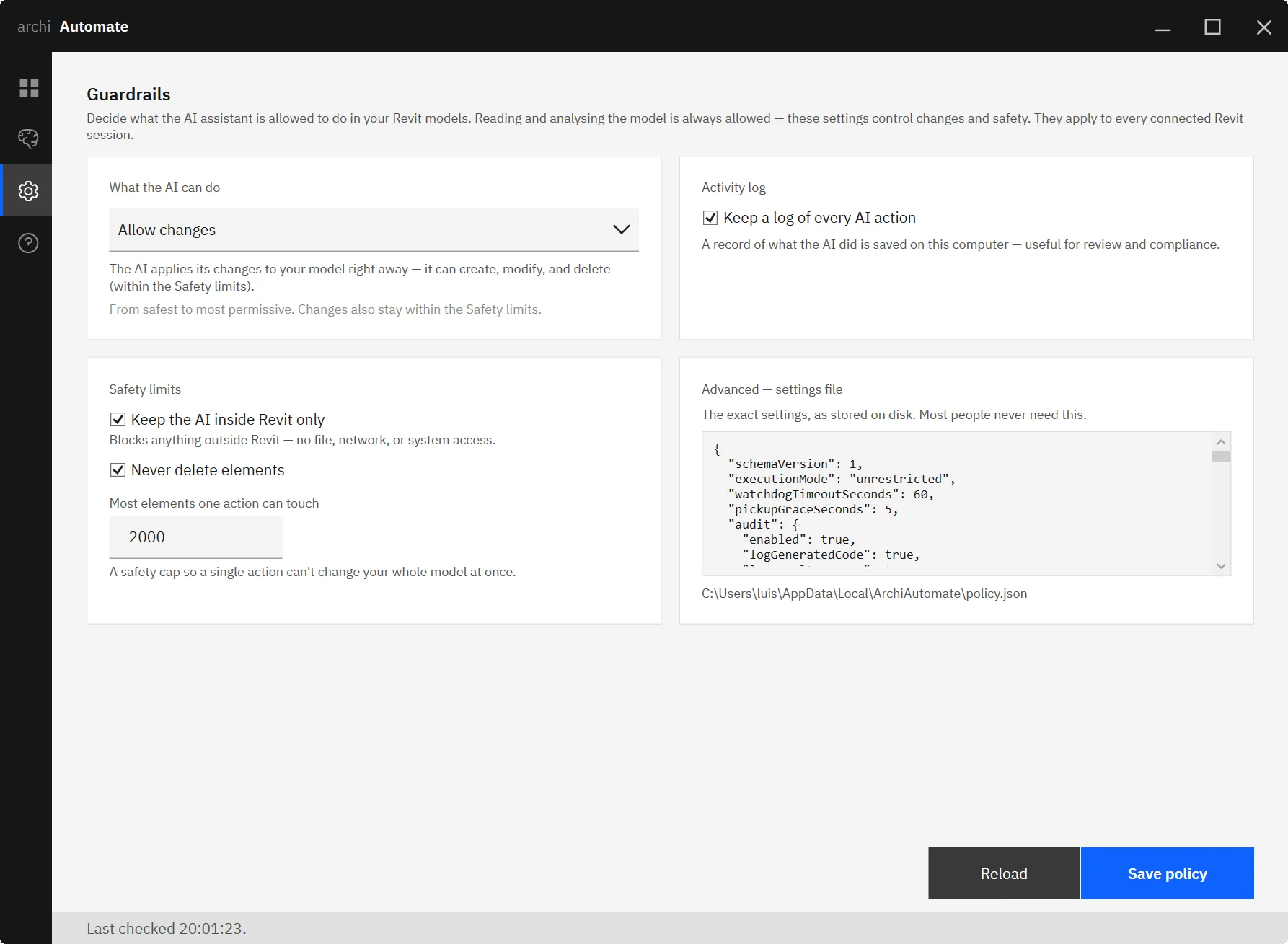
A deny-list and scope caps screen every operation
Underneath the execution mode sits a code-safety deny-list. Before any AI-composed operation runs, it is screened against this list. To be precise about what this is: it is defense-in-depth, an extra barrier that blocks known-dangerous patterns. It is not a sandbox, and we will not pretend it is one. Think of it as a second pair of eyes that catches operations that should never reach your model, not as an isolation chamber that makes anything safe to run.
On top of that, you set scope caps that bound the blast radius of any single operation:
- A maximum number of elements per operation, so a request can never sweep through thousands of objects in one go.
- A block-deletes switch, so the assistant cannot remove elements even when changes are allowed.
- Allowed and denied categories, so you can let the AI touch, say, furniture and annotations while keeping structure or MEP off-limits.
These caps are about AI model permissions in the most literal sense: you are defining the boundaries of what is permitted before the assistant ever acts.
Writes are transactional and roll back on error
Even an approved, in-scope change can hit a problem partway through. Archi Automate handles this the way a careful BIM author would. In Revit, writes run inside managed transactions. In Rhino, a write happens as a single managed Undo. In both cases, if anything fails mid-operation, the change rolls back automatically and your model is left as it was. You do not end up with a half-applied edit.
One related detail matters for trust: nothing is saved automatically. The assistant changes the in-memory model; you are the one who decides to save. If you do not like what you see, close without saving and the change is gone.
There is also a politeness rule that protects your work. If the host application is busy, the request returns a fast, recoverable "not ready, retry" signal rather than forcing its way in. It never applies a half-finished change to a model that was mid-task.
Every request is written to an audit log
Guardrails are only credible if you can check what happened. Archi Automate keeps a full JSONL audit log that records every request: what was asked, which mode it ran in, and the outcome. When someone asks how to audit AI BIM activity, this is the answer. The log is a line-by-line record you can read, search, or hand to a reviewer, so AI BIM security is something you can verify after the fact, not just trust in the moment.
An enterprise policy can override and lock settings
For firms, individual discretion is not always enough. An optional company or enterprise policy overlay sits above the per-user settings. It can override and lock selected guardrails, so a BIM manager can, for example, force read-only on certain projects or keep block-deletes permanently on. The Hub's Guardrails page edits one global policy across all connected hosts, so you are not configuring Revit, Rhino, Archicad, and openBIM separately. Critically, the policy is enforced fail-closed offline: if the machine cannot confirm the policy, it does not fall back to a permissive state.
Your model data stays on your machine
A common and fair question about guardrails for AI CAD work is where the data goes. With Archi Automate, no model data leaves the machine. The model work happens locally. The only outbound traffic for model work is the optional site-context open-data lookup, and that sends a location only, never any model data. If you would rather send nothing at all, leave that lookup off. There is no background app-to-app cloud sync moving your project around behind your back.
Honest caveats
Trust is built on accuracy, so here is what these guardrails do not do.
- Archicad has no preview. Preview-changes is supported for Revit, Rhino, and openBIM model edits only. In Archicad, when you are in allow-changes, writes apply directly. There is no dry-run step, so be deliberate about when you enable changes there.
- The deny-list is not a sandbox. It is a screening layer that adds defense-in-depth. It reduces risk; it does not make every operation harmless.
- File writes do not get a preview. The dry-run applies to model edits, not to writing files.
Naming these limits is the point. Guardrails you understand are guardrails you can rely on.
A sensible adoption path
The practical way to build confidence is to climb the modes in order. Start in read-only and let the assistant explore a real project; you will quickly see how it reasons about your model without any risk. When you have a specific edit in mind, switch to preview and confirm the change looks right before it commits. Only then move to allow-changes, and keep your scope caps and block-deletes in place. For teams, set the enterprise policy first so the floor is fixed before anyone connects.
Go deeper
If you want to see how the guardrails apply per host, these guides cover the specifics:
- MCP for Revit — how AI connects to and edits Revit safely.
- MCP for IFC and openBIM — vendor-neutral model access with the same controls.
- Edit and remediate IFC with AI — preview-backed edits on openBIM data.
- One AI across Revit, Rhino, and Archicad — one policy across every host.
- Connect Claude to your AEC tools — getting set up from scratch.
Giving AI access to your BIM model is safe when the permissions, the checks, and the record all stay in your hands. That is exactly how Archi Automate is built. Start your 14-day trial of AI for AEC and try it in read-only first.











