
Classify IFC Elements (Uniclass / bSDD) with AI

Short answer: You can classify IFC elements with Uniclass, OmniClass, a national system, or buildingSMART Data Dictionary (bSDD) codes using AI. With Archi Automate, an AI client searches bSDD for the authoritative code, then runs ifc_classify to associate that code with the right elements. The classification is previewable, so you confirm the change before anything is saved.
Classification is one of those BIM chores that everyone agrees is essential and almost nobody enjoys. It is the connective tissue between a model and everything downstream: cost plans, asset registers, handover deliverables, and standards checks. Yet applying codes by hand, element by element, is slow, error-prone, and easy to get subtly wrong. This guide shows how to ground classifications in an authoritative source and apply them across an IFC model with AI, vendor-neutrally.
Why IFC classification matters (and why it is tedious)
A classification code tells everyone what a thing is in a shared, machine-readable language. A wall is not just "Basic Wall 200mm"; it is a specific Uniclass or OmniClass entry that a cost estimator, a facilities team, and a compliance checker all recognize. Without that code, an IFC (Industry Foundation Classes) model is a geometric description that humans can read but downstream systems cannot reliably consume.
Three pressures make classification non-negotiable. First, handover: asset information requirements and formats like COBie expect classified components so that an operator can find and maintain them years later. Second, cost: quantity take-off and cost planning lean on consistent classification to map elements to rates and packages. Third, compliance: information delivery specifications, including IDS (Information Delivery Specification), frequently require that elements carry a classification reference from a named system.
So why is it painful? Models contain thousands of elements. Codes live in long reference tables that are easy to mistype. Different disciplines reach for different systems. And classification is usually applied late, under deadline pressure, when an audit reveals that half the model is missing codes. Doing it manually means hunting through tables, copying strings, and hoping you picked the right entry.
Ground your codes in bSDD first
The biggest risk in AI-assisted classification is a confidently wrong code. The fix is to ground every classification in an authoritative source rather than letting a model invent one. Archi Automate exposes ifc_bsdd_search, which queries the buildingSMART Data Dictionary (bSDD) for real, published entries across Uniclass, OmniClass, national dictionaries, and other registered systems.
The workflow is a short conversation. You ask the AI client to find the right entry for, say, an external load-bearing wall in Uniclass. It searches bSDD, returns candidate codes with their official titles and URIs, and you confirm the match. Because the code comes from bSDD rather than the model's best guess, the result is traceable back to a published standard. That traceability is exactly what an auditor or a downstream system expects.
Apply classification with AI, preview first
Once you have the right code, ifc_classify associates it with the chosen elements. You describe the target set in plain language: "classify all external walls," "apply this code to the structural columns on level 02," or "classify the doors that are missing a reference." The AI client composes the governed operations at runtime and stages the change.
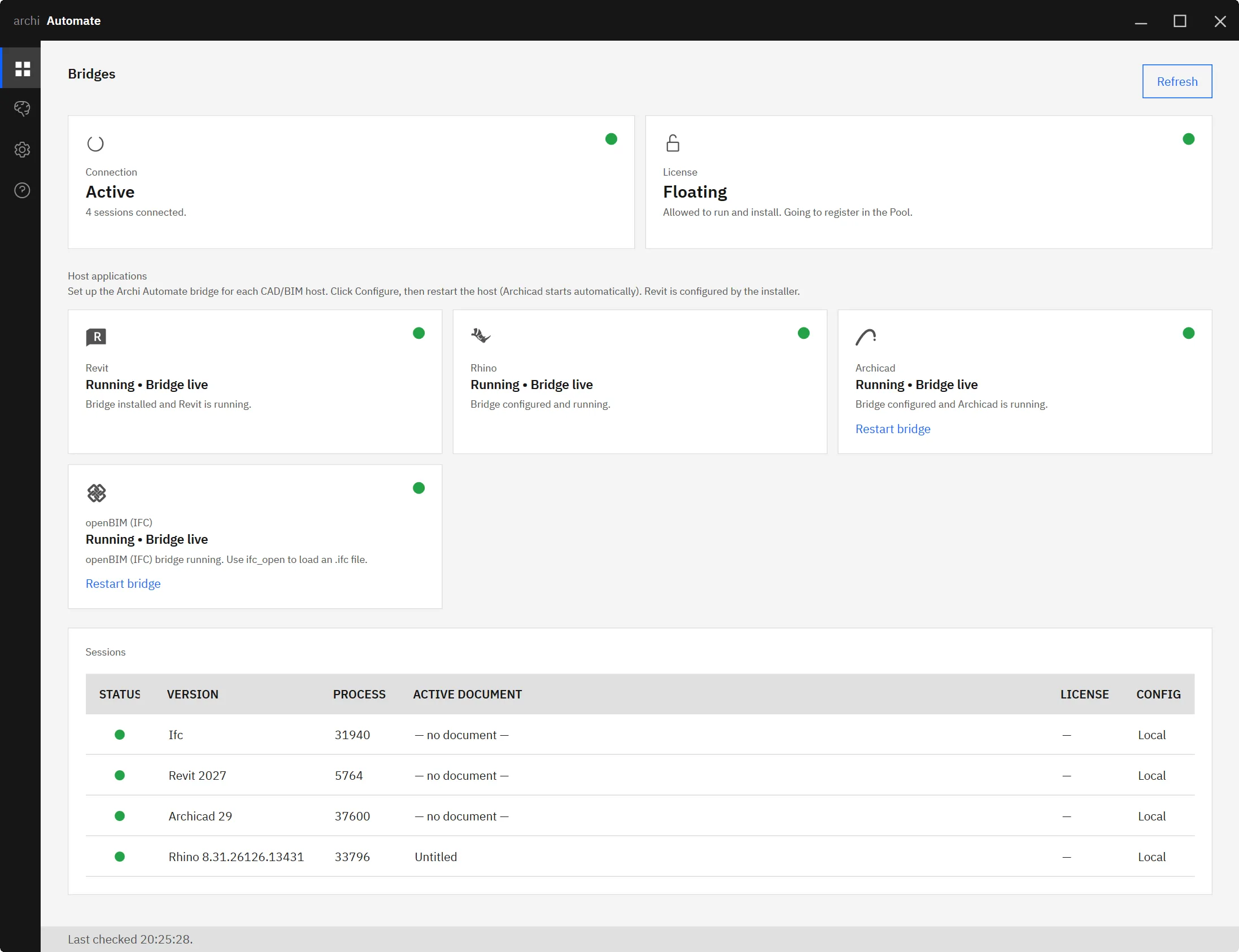
Crucially, this operation is previewable. Model edits in Archi Automate run and then roll back so you can inspect the result before committing. You see exactly which elements would receive which code, review it, and only then save. Nothing is written silently. The screenshot below shows the AI client and the openBIM connector working together to bridge a request into a concrete, reviewable classification change.
Keep classification consistent across the whole model
Single elements are easy; consistency is the hard part. The value of AI here is applying the same logic uniformly. Instead of classifying one wall and forgetting twelve others, you can ask the client to find every element of a type and classify them together, then sweep the model for elements that still lack a reference. Because you can describe sets by type, level, or property, you cover the model systematically rather than one click at a time.
A practical pattern is iterative: identify a category, bSDD-search the correct code, classify with a preview, confirm, then move to the next category. Each pass is reviewable, so the model converges on full, consistent coverage without you ever trusting an unverified bulk edit.
How classification feeds IDS, handover, and cost
Classification is rarely the end goal; it is an input to everything that follows. A well-classified IFC model flows straight into validation and delivery. You can create IDS from plain language that requires classification references, then validate the IFC against that IDS with AI to confirm every element carries the code it should. If the check finds gaps, you can edit and remediate the IFC with AI in the same governed, previewable way.
Downstream, classified elements map cleanly into handover deliverables. When you turn IFC into a COBie handover, the classification references travel with each component, so the asset register is meaningful to the operator on day one. The same codes anchor quantity take-off and cost packages, which is why getting classification right early pays off repeatedly.
Vendor-neutral by design
Classification often spans authoring tools, and the openBIM connector is built for exactly that. It is headless: it needs no CAD application and no license, and it works on IFC produced by any tool. A model exported from Revit, Rhino, Archicad, or anything else is classified the same way. That neutrality matters because classification is a project-wide concern, not a single-discipline one. If you want to understand the plumbing, see how the MCP for IFC and openBIM connector works and how to connect Claude to your AEC tools.
Safety and the preview guarantee
Everything runs behind guardrails. By default the connector is read-only. To change a model you move deliberately to preview, where the classification runs and rolls back so you can confirm the result, and then to allow changes when you are ready to commit. Every operation is audited, and nothing is auto-saved. So even a sweeping, model-wide classification pass is something you inspect before it becomes permanent. The preview is not a simulation of a guess; it is the real operation, shown to you and then undone until you say go.
Archi Automate ships as a single Windows installer with a 14-day trial and no key required, connecting AI clients to Revit 2025-2027, Rhino 8 (McNeel), Archicad 29 (Graphisoft), and openBIM (IFC, IDS, BCF). Classification is a clear win for AI assistance: high-volume, rule-based, and tedious by hand, but fast, grounded, and reviewable when an AI client searches bSDD and applies codes with a preview you control.











