
Export COBie from IFC for FM Handover with AI

Short answer: Open your IFC model in an AI client connected through Archi Automate’s openBIM connector, ask it to audit and fill the asset data, then run ifc_export_cobie to write a COBie 2.4 spreadsheet (.xlsx) for facilities-management handover. Because exporting writes a file, you confirm it under Allow changes. The connector is headless, so it works on IFC from Revit, Archicad, or any other tool — no CAD application or license required.
Handover is where a lot of well-modelled BIM quietly loses its value. The geometry is beautiful, the federated model coordinates cleanly, and then the owner asks for an asset register their CAFM system can actually ingest — and someone spends a fortnight retyping door schedules into a spreadsheet. COBie exists to stop exactly that. This guide shows how to produce a clean COBie export straight from your IFC, and how to make sure it is genuinely useful before you hand it over.
What COBie is and why owners want it
COBie (Construction Operations Building information exchange) is a standardized, structured format for the non-graphical information an owner or operator needs to run a building. It captures the asset, space, and equipment data — floors, spaces, systems, components, types, manufacturers, warranties, serial numbers, spare parts, maintenance attributes — organized into a defined set of worksheets. Delivered as a spreadsheet, it is human-readable and machine-ingestible, which is why it has become a common contractual deliverable for facilities-management (FM) handover.
The point of COBie is continuity. Instead of a pile of PDFs and a 3D model the FM team can't query, the operator receives a single structured file that maps cleanly into their maintenance and asset-management systems. Done well, a COBie spreadsheet is the bridge between the project that built the asset and the decades of operation that follow.
Export a COBie .xlsx from your IFC
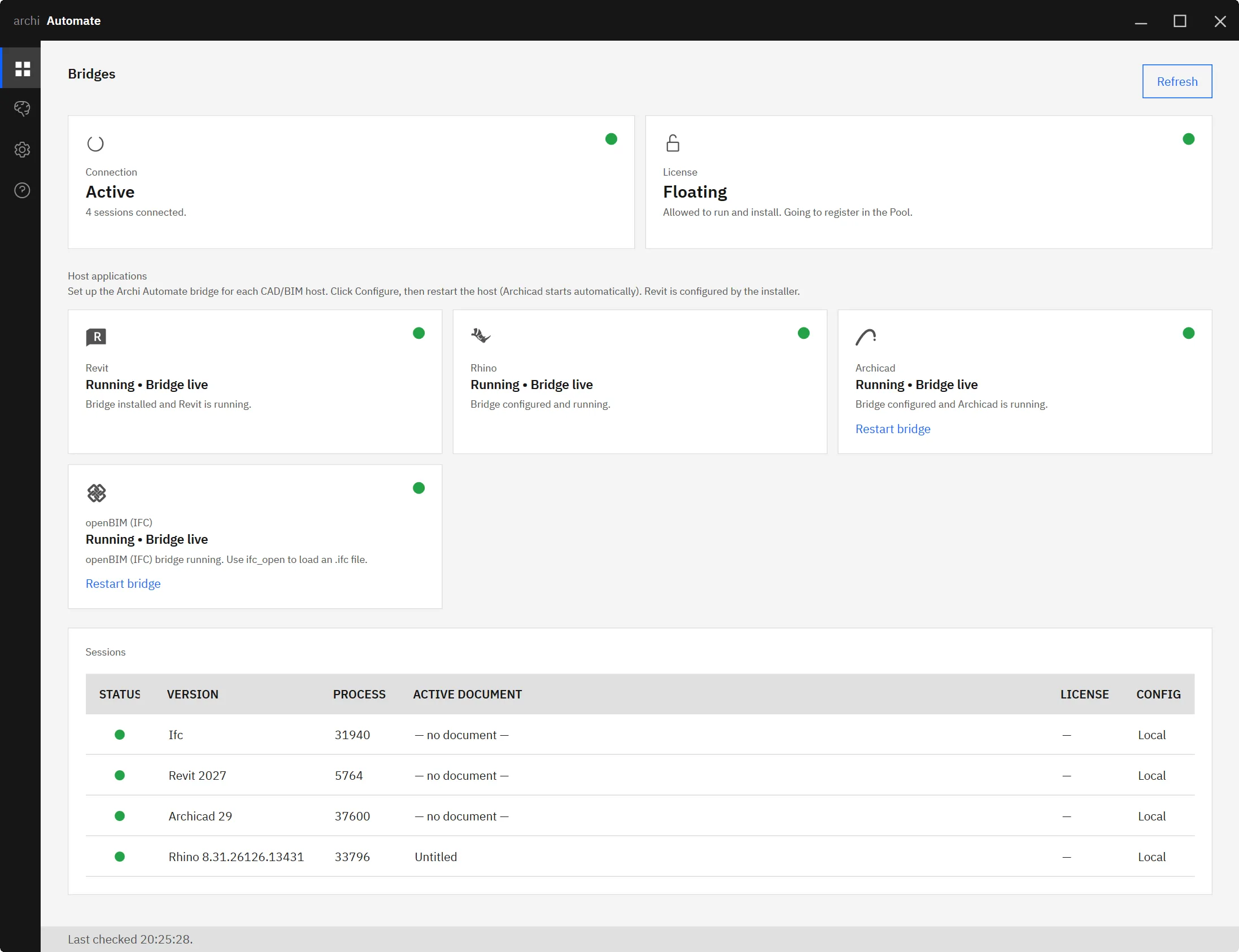
Archi Automate is an AI-for-AEC product: one Windows installer connects AI clients to Revit 2025–2027 (Autodesk), Rhino 8 (McNeel), Archicad 29 (Graphisoft), and openBIM (IFC·IDS·BCF) through MCP. For COBie work you use the openBIM connector, which is headless — it reads and writes IFC directly without opening any authoring tool. Archi Automate composes governed operations at runtime, so the export is a single, auditable step rather than a manual spreadsheet-building marathon.
In plain language, the flow is short. You point the connector at your IFC file, the model loads, and you ask the AI to run ifc_export_cobie. The tool reads the open IFC model and writes out a COBie 2.4 spreadsheet (.xlsx) populated from the asset, space, and equipment data in that model. You name the output, confirm the write, and you have a handover file.
What you don't do is the tedious part: manually walking each worksheet, copying property values out of the model, and reconciling spaces against components by hand. The connector lays the spreadsheet out for you from what's already in the IFC.
Make it useful first: audit, fill, and validate
A COBie export is only as good as the data behind it. If the IFC is missing serial numbers, warranty periods, or type classifications, the spreadsheet will faithfully reproduce those gaps — and the FM team inherits them. The best practice is to clean the data before you write the file.
Because the same AI client can read the model, you can audit asset data conversationally. Ask it to list components missing a manufacturer, to flag spaces without an area or a name, or to report which equipment types lack maintenance attributes. Where information exists but isn't mapped correctly, you can have the AI propose and apply property fixes — model edits run under the Preview guardrail so you see the change before it's committed.
Then validate completeness against an Information Delivery Specification (IDS). An IDS encodes the owner's actual requirements — which classes must carry which properties, in which property sets, with which data types. Running an IDS check tells you, objectively, whether the model meets the handover spec before you export. The sequence is simple and worth following every time: read and audit the asset data, fill the gaps, validate against the IDS, then export the COBie. That way the spreadsheet you hand over is a deliverable, not a to-do list.
Vendor-neutral: any tool’s IFC works
Because the openBIM connector operates on IFC directly and headlessly, it doesn't care which authoring tool produced the model. A COBie export from a Revit-authored IFC follows the same path as one from an Archicad-authored IFC, or from a model that has passed through several tools on its way to handover. You don't need the originating application installed, and you don't need its license. For multi-disciplinary projects where the federated IFC is the source of truth, that vendor-neutrality is the whole point — one consistent handover process regardless of how each model was built.
A note on safety: exporting writes a file
Archi Automate’s guardrails are tiered. Read only is the default, so audits and IDS checks happen without touching anything. Model edits — like filling in missing properties — run under Preview, where you approve the change first. Writing a file to disk requires Allow changes.
Exporting a COBie spreadsheet is a file write, so it is not previewable in the model sense — it needs Allow changes to be enabled before the .xlsx is produced. Every operation is audited, and nothing is auto-saved, so you always know what was written and when. In practice this means you can let the AI freely explore and audit your model under the default guardrail, and only step up to Allow changes at the deliberate moment you're ready to produce the handover file.
Where to go next
COBie export sits at the end of a broader openBIM workflow, and several adjacent steps make the handover stronger. To understand the connector itself, see MCP for IFC and openBIM. To clean up the underlying model before export, read editing and remediating IFC with AI. To check completeness against an owner's spec, see IFC IDS validation with AI. For asset classification that feeds richer FM data, read classifying IFC with Uniclass and bSDD. And if you also need quantities for the handover pack, see IFC quantity takeoff with AI.
Ready to produce FM-ready COBie straight from your IFC? Explore Archi Automate — AI for AEC. One Windows installer, a 14-day trial, and no key required to start.











