
Validate IFC Against buildingSMART IDS with AI

Short answer: To validate an IFC model against a buildingSMART IDS with AI, open the IFC in Archi Automate's headless openBIM connector, then run ifc_validate_ids against your .ids file. The AI returns a pass/fail breakdown per requirement, names the specific elements responsible for each failure, and lets you summarize, remediate, and re-validate — all vendor-neutral, with no CAD application and no host license required.
If you hand a model off to a client, a contractor, or an asset owner, the geometry is rarely the problem. The data is. Walls without fire ratings, doors missing accessibility flags, spaces with no classification codes, components with no identity references — these gaps are what stall a handover. The buildingSMART IDS (Information Delivery Specification) exists precisely to make those data requirements explicit and checkable, and Archi Automate (an "AI for AEC" tool from Autodesk® Revit®, Rhino, and Archicad workflows) lets an AI client run that check conversationally.
What an IDS is and why you validate against it
An IDS is buildingSMART's machine-readable specification of exactly what data a model must contain. Instead of a 40-page PDF saying "all fire doors shall carry a fire rating property," an IDS encodes that as a structured rule: for this set of elements (the applicability), these properties must be present and must satisfy these constraints (the requirements). Because it is a formal, vendor-neutral format, both the party requesting the data and the party delivering it can agree on the same file and check against it automatically.
Validating against an IDS answers a different question than checking whether a file is technically valid. An IFC can be perfectly well-formed and still be useless for a handover because it carries none of the information the contract requires. IDS validation is a data-completeness and compliance check: does this model actually contain the properties, classifications, and identity data that the deliverable specification demands? That is the heart of an openBIM compliance check, and it is the work an AI client can now drive for you step by step.
How AI validates your IFC against an IDS
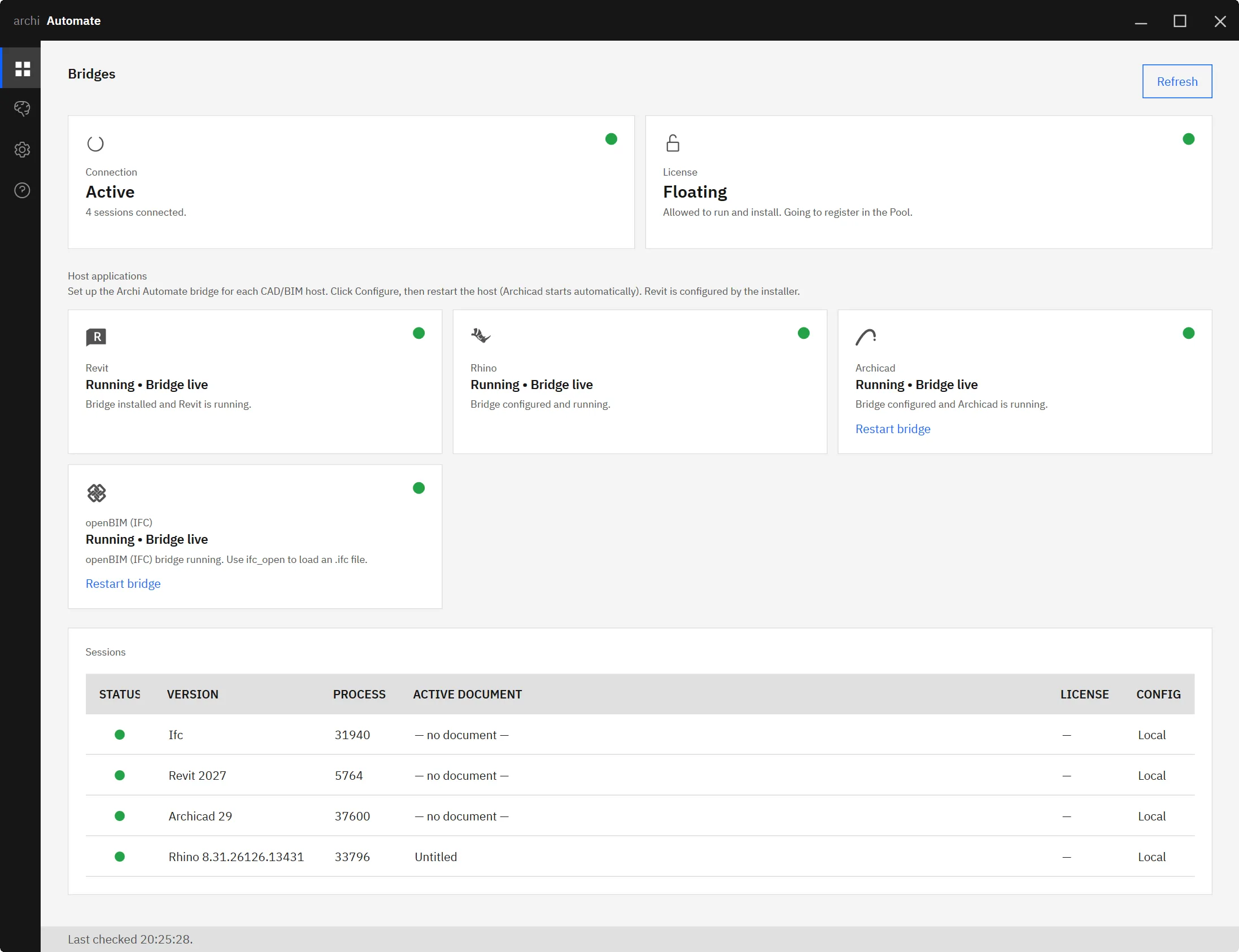
The connector that does this work is headless and on-demand. It needs no CAD application running and no host license — an open IFC file (or a federation of several) becomes the "session." It is schema-agnostic across IFC2x3, IFC4, IFC4x1, and IFC4x3, so it works on IFC exported from any tool: Revit, Archicad, Rhino, Tekla, and more. Inside the Hub control center, the Bridges page shows host status, the LLMs page connects your AI client in one click, and Guardrails governs what the AI may do.
The validation flow itself is short. You point your AI client (Claude, OpenAI Codex, Cursor, VS Code, Windsurf, Gemini CLI, Cline, or any MCP client) at the connector, and the model composes governed operations at runtime:
- Open the model —
ifc_openloads your IFC, or a set of IFCs federated together, as the active session. - Run the IDS check —
ifc_validate_idsvalidates the open model against your buildingSMART IDS file and returns a pass/fail breakdown per requirement. - Read the result — the AI reports which requirements passed, which failed, and which specific elements are responsible for each failure.
Because the AI sits in the loop, you are not reading a raw XML report. You ask plain-language questions — "which requirements failed, and how many elements does each one affect?" — and get an answer back in the same conversation, grounded in the actual IFC IDS checker output rather than a guess.
Reading and acting on failures
The value of a per-requirement breakdown is that it turns a binary "fail" into an actionable list. A typical ifc_validate_ids result tells you, for each rule in the specification, whether the model satisfied it and which elements did not. That lets the AI summarize failures the way a coordinator would:
- "Requirement: fire rating present on all
IfcDoorinstances — failed, 12 doors missing the property." - "Requirement: classification reference on all spaces — failed, 4 spaces uncoded."
- "Requirement: identity reference (mark/tag) on structural columns — passed."
From there you can ask the AI to group the responsible elements, list their GlobalIds, or prioritize the requirements that block the handover. This is where validation stops being a checkbox and becomes a punch list. If you also coordinate issues across a team, the same elements can flow into an issue-tracking workflow — see how turning IFC validation results into BCF in one step works, and how AI-driven BCF coordination keeps those issues moving.
The sample IDS library and the schema health check
You do not need to author an IDS to try this. The connector ships with a bundled, schema-valid sample IDS library, surfaced through ifc_list_sample_ids. It covers common deliverable themes — fire rating, accessibility, LOIN handover, classification presence, and identity QA — so you can validate a real model against a realistic specification on day one. When you are ready to write your own rules, see creating an IDS from plain language, where the AI helps you turn a requirement written in English into a valid IDS file.
It is worth being precise about two related but distinct operations. ifc_validate_ids checks data completeness against a specification — does the model contain the right information? ifc_validate is a different tool: it runs a schema/EXPRESS health check to confirm the file is well-formed and structurally sound. One asks "is this file valid IFC?"; the other asks "does this valid IFC carry the data my contract requires?" A sensible routine is to run the health check first so you know the model is sound, then run the IDS check to know whether it is complete. Both are part of a broader MCP-for-IFC openBIM workflow.
From validation to remediation and re-validation
Finding the gaps is only half the job. The natural next step is to fix them and prove the fix. Archi Automate's Guardrails are what make this safe to do conversationally. By default the connector is Read only, so a validation run never touches your file. To make edits you move to Preview changes (a dry-run that shows what a model edit would do) and, only when you are ready to write, to Allow changes (required for file writes). Every operation is screened, sessions are audited, and nothing is saved automatically.
With changes allowed, you can ask the AI to populate the missing properties, add the absent classification references, or correct the identity data the IDS flagged — see editing and remediating IFC with AI for how that works. Then you re-run ifc_validate_ids against the same .ids to confirm the previously failing requirements now pass. Open → validate → summarize failures → remediate → re-validate is the full loop, and each pass through it is recorded.
Why vendor-neutral and no CAD app matters
Because the connector is headless and works directly on IFC, the model you validate does not have to come from any single authoring tool, and you do not need a seat of Revit, Archicad, or Rhino open to run the check. A consultant can validate a contractor's exported IFC without owning the software that produced it. A BIM manager can batch-check incoming deliverables on a machine with no CAD license at all. And because IDS and IFC are both buildingSMART open standards, the same specification travels across every tool in the supply chain — which is the entire point of openBIM. The same vendor-neutral footing is what powers related workflows like AI clash detection on IFC and connecting your assistant to the wider toolchain, as in connecting Claude to your AEC stack.
A note on safety and scope
IDS validation is a read operation, so it carries essentially no risk to your file — the default Read-only Guardrail means the AI inspects and reports but cannot alter anything. The moment you cross into remediation, you choose deliberately: Preview to rehearse, Allow to commit. Nothing is saved behind your back, and every session is auditable. That separation between "look" and "change" is what lets you put an AI in front of production models with confidence.
Archi Automate runs from a single Windows 10/11 x64 installer and includes a 14-day full trial with no key required. If you want to validate a real IFC against a buildingSMART IDS today — using your own specification or the bundled sample library — start your 14-day free trial and run your first ifc_validate_ids in minutes.











