
Convert IFC to glTF and USDZ (Web + AR) with AI

Short answer: Point an AI client at Archi Automate’s openBIM connector, then ask it to run ifc_export_gltf for a lightweight binary glTF (.glb) you can drop into any web or desktop 3D viewer, and ifc_export_usdz for a USDZ file that opens directly in Apple AR Quick Look (iPhone, iPad, Vision Pro) and web AR. Both are vendor-neutral, work on IFC from any tool, and need no CAD application or license. Because they write files, you enable Allow changes first.
Sharing a building model with people who do not run BIM software is harder than it should be. IFC is the right format for exchange between authoring tools, but hand an IFC file to a project sponsor, a planning officer, or a client on their phone and nothing opens. The two formats that actually travel are glTF for the web and USDZ for augmented reality. Archi Automate™ turns those conversions into a single instruction you give an AI client, so you can go from an IFC model to a shareable 3D link or an AR experience without exporting through a desktop CAD seat.
Why export glTF and USDZ out of IFC
IFC carries the full semantic model: walls, spaces, systems, properties, classifications. That richness is exactly what you do not want when the goal is simply to show someone the building. glTF and USDZ are presentation formats. They strip the model down to geometry and materials so it loads fast, renders anywhere, and needs no specialist viewer.
- glTF (
.glb) is the de facto standard for 3D on the web. A binary glTF file embeds geometry, materials, and textures in one compact package that almost every web and desktop 3D viewer can read. - USDZ is the format Apple AR Quick Look uses. Tap a USDZ link on an iPhone or iPad and the model drops into the room in front of you, correctly scaled, with no app install.
Producing both from the same source IFC means non-CAD stakeholders can see the design two ways: a 3D model they can orbit in a browser, and a real-space AR object they can walk around.
Export glTF (.glb) for web and desktop viewers
The ifc_export_gltf operation reads geometry from your IFC and writes a binary glTF file (.glb). You ask the AI client in plain language — something like “export this IFC to glTF for sharing” — and it composes the governed operation at runtime against the openBIM connector.
The resulting .glb is self-contained, so you can:
- Drop it into a web-based 3D viewer and send a link to a client.
- Open it in any desktop glTF viewer for a quick design review.
- Embed it in a presentation, a project portal, or a static site.
Because the file is geometry-and-materials only, it is dramatically smaller than the source IFC and loads in a browser without a heavy plugin. That makes it the right artifact for stakeholders who just need to see the building, not interrogate it.
Export USDZ for Apple and web AR
The ifc_export_usdz operation writes a USDZ file tuned for augmented reality. It is produced Y-up and in metres, which is exactly what Apple AR Quick Look expects, so the model appears at true scale when placed in a room. The same USDZ also works in web AR contexts that accept the format.
The use case is immediate and concrete. Send the USDZ to a colleague or client, they tap it on an iPhone, iPad, or Vision Pro, and the building — or a single component, a façade mock-up, a piece of plant — appears in real space where they can walk around it. No CAD seat, no viewer app, no training. For an on-site conversation or a client meeting, dropping the design into the actual room is far more persuasive than a screen.
If your interest is the AR experience end to end rather than the conversion mechanics, see the companion walkthrough linked below. This article focuses on the export itself: getting a clean, correctly scaled USDZ out of any IFC.
The Scene Contract and the local AI 3D viewer
Both exports draw on a shared internal representation the product calls the Scene Contract — a consistent description of the model’s geometry and materials that the export operations consume. The same Scene Contract also feeds Archi Automate’s own local AI-driven 3D viewer, so the model you preview inside the product and the glTF or USDZ you hand to someone else come from the same source of truth.
That consistency matters. It means the lightweight .glb you share on the web and the USDZ you drop into AR represent the same geometry you reviewed locally, rather than a separately re-exported version that might drift. You get one conversion pipeline feeding three destinations: the built-in viewer, the open web, and AR.
Vendor-neutral, no CAD application required
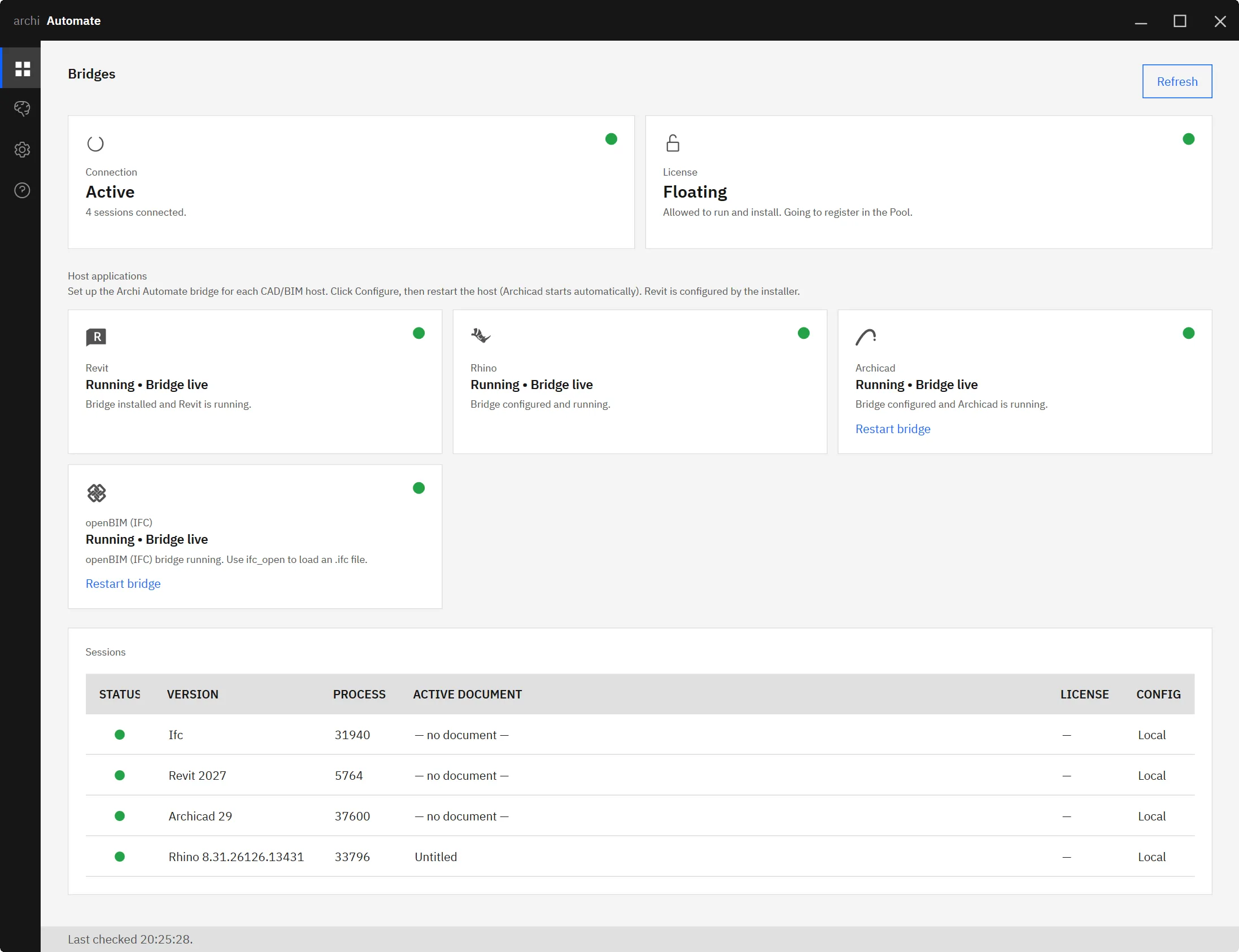
The openBIM connector is headless. It does not open Revit, Rhino, or Archicad, and it needs no CAD license to run. It works directly on IFC files, whatever tool produced them — Revit 2025–2027 (Autodesk), Rhino 8 (McNeel), Archicad 29 (Graphisoft), or anything else that exports valid IFC.
For glTF and USDZ export this is a real advantage. You can stand up a single Windows installer, point it at a folder of IFC models from mixed sources, and produce web-ready and AR-ready files without owning a seat of every authoring tool that touched the project. The conversion is genuinely vendor-neutral: IFC in, glTF or USDZ out, no authoring application in the loop.
A note on safety: these are file writes
Both ifc_export_gltf and ifc_export_usdz create new files on disk, so they are write operations rather than previewable read-only queries. Archi Automate runs Read only by default, which keeps the connector from changing anything until you decide otherwise. To run these exports you switch on Allow changes, which is what permits file writes.
Every operation is audited, and nothing is auto-saved on your behalf — the AI client composes governed operations at runtime, and you stay in control of when a file is actually written. For an export, that means the only thing produced is the .glb or USDZ you asked for, in the location you chose.
Where to go next
If you are setting up the openBIM connection or want to see how AR fits a real workflow, these related guides go deeper:
- MCP for IFC and openBIM — how the headless connector exposes IFC operations to AI clients.
- BIM to AR with USDZ — the end-to-end AR experience, from model to real-space Quick Look.
- The AI BIM 3D viewer — previewing models locally via the Scene Contract.
- Connect Claude to AEC — wiring an AI client to your BIM stack.
- Edit and remediate IFC with AI — cleaning up geometry and data before you export.
- IFC to COBie handover — another vendor-neutral export from the same connector.
Ready to turn IFC models into web and AR-ready 3D? Explore Archi Automate, AI for AEC — one Windows installer, a 14-day trial, and no key required.











