
The AI-Driven 3D Viewer for BIM

Short answer: An AI BIM 3D viewer lets an AI assistant actually see your building model, not just read its data. With Archi Automate, Autodesk® Revit®, Rhino 8 (McNeel), and vendor-neutral openBIM (IFC) all export the same portable scene through a shared "Scene Contract." The AI can then open a local 3D viewer, steer the view (layers, camera, time of day, selection), and capture a PNG it reasons over — all on your machine, with nothing uploaded.
The gap: AI could read the model, but not look at it
For the last year, connecting an AI client to BIM has meant working with data: element schedules, parameters, IFC entities, relationships, and geometry expressed as numbers. That is powerful for audits, take-offs, and rule checks. But it leaves an obvious blind spot. An architect glances at a model and instantly notices the canopy floating six inches off the slab, the mullion pattern that breaks at the corner, or the shadow that swallows a courtyard at 3 p.m. The AI, reading semantics alone, could describe the geometry but never look at it.
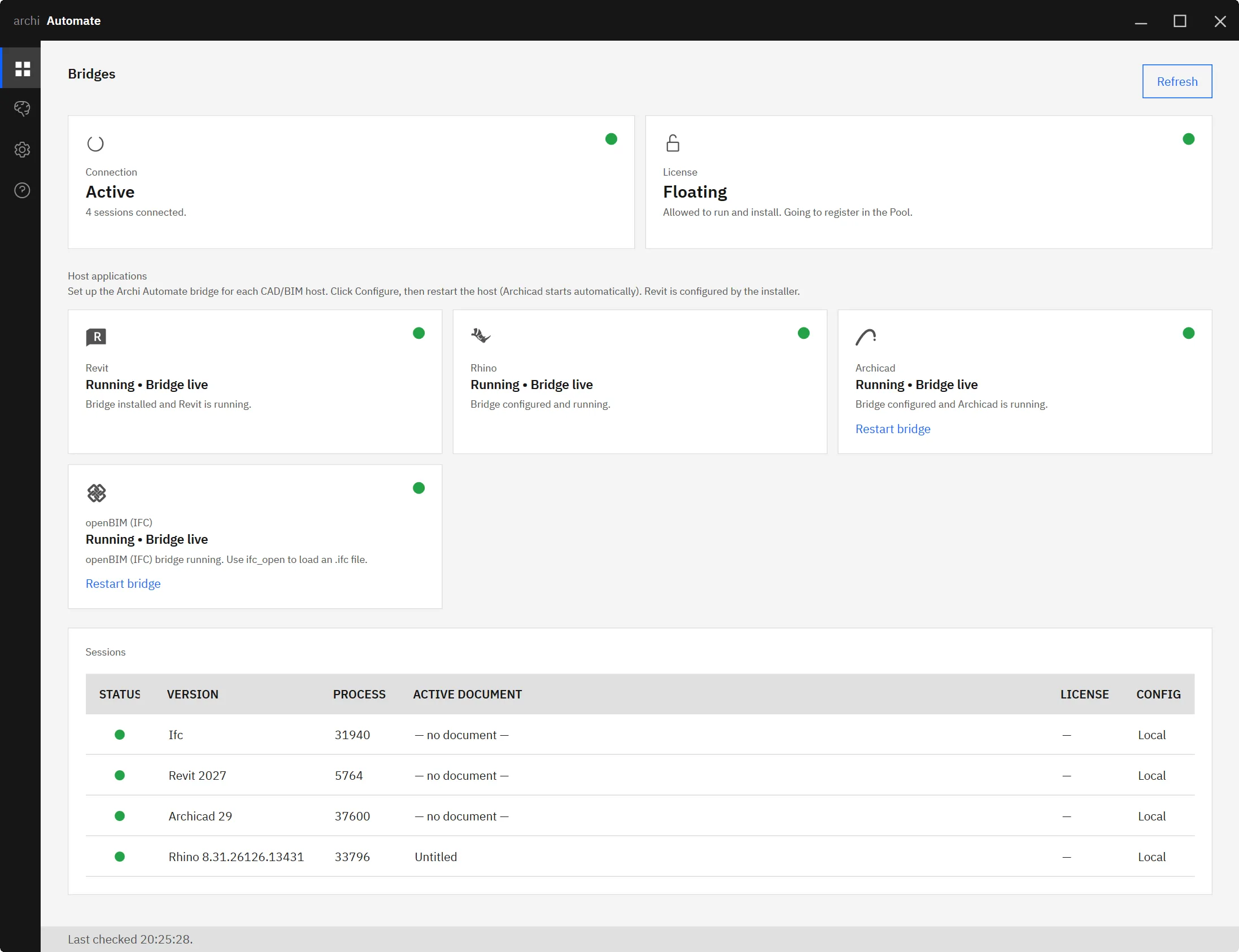
That is the difference between an assistant that parses your model and one that perceives it. Archi Automate — the "AI for AEC" layer that connects AI clients like Claude, OpenAI Codex, Cursor, VS Code, Windsurf, Antigravity, Gemini CLI, Cline, and any MCP client to your authoring tools — closes the gap with a 3D viewer the AI can drive and screenshot. It composes governed operations at runtime over the Model Context Protocol (MCP), so the same capability works whether you author in Revit, Rhino, Archicad® 29 (Graphisoft), or pure IFC.
The Scene Contract: one exported scene from Revit, Rhino, or IFC
The trick that makes a single viewer work across every host is a shared Scene Contract. Instead of each application speaking its own proprietary dialect to a bespoke viewer, every host exports the same portable scene. You call ifc_export_scene, revit_export_scene, or rhino_export_scene, and each one produces an identical pair of files:
- A
scene.glb— the portable 3D geometry the viewer renders. - A
scene.jsonsidecar — an element map that ties every mesh back to its source element, plus a geo-reference so the model sits correctly in the world.
Because the contract is host-agnostic, the AI does not need to know or care which application produced the scene. A façade study from Rhino and a coordination model from Revit arrive in the same shape, with the same element map, ready for the same viewer.
Open, steer, and screenshot the model
Once a scene exists, three operations give the AI full control of a real 3D view.
viewer_show — open a local viewer
viewer_show opens a standalone local 3D viewer on a scene. It can also carry an optional results overlay — for example, a sun-study result painted onto the geometry — so analysis and model live in the same picture rather than in separate exports.
viewer_set — drive the view
viewer_set updates the view state so the AI can frame exactly what it needs to inspect:
| View control | What the AI can do |
|---|---|
| Layer visibility / isolation | Hide everything but the curtain wall, or isolate a single level |
| Time (hour-of-day) | Advance the sun to study shadows at a given hour |
| Colormap | Switch to a result colormap for a study overlay |
| Camera pose | Orbit to an elevation, a corner detail, or a courtyard view |
| Element selection | Highlight and focus a specific element from the map |
viewer_capture — a PNG the AI can see
viewer_capture grabs a PNG of the current view — and that image goes straight back to the AI, which can see it and reason over it. This is the model-screenshot-AI loop in practice: open the scene, isolate a system, set the camera, capture, look, and respond with an observation grounded in pixels, not just parameters. "The east-facing louvers cast no shadow on the entry at 9 a.m. but fully shade it by noon" becomes a statement the AI can make because it actually watched the sun move across the model.
Fully local: nothing is uploaded
The viewer runs as a local loopback server on your own machine. The scene, the view state, and every captured PNG stay on your hardware. Nothing about your model travels to an outside service to make the AI "see" it. For practices handling confidential or competition work, that distinction matters: the AI gains vision into the model without the model ever leaving the building.
This sits inside Archi Automate's broader guardrails. The default posture is read only; Preview shows you what an operation would do; and Allow changes is required before anything writes to a file. Actions are audited, and nothing is auto-saved. A viewer is, by nature, a read operation — it observes — which keeps the whole "AI sees the model" workflow firmly on the safe side of the line.
Honest limits: it is an exported snapshot
Be clear about what this is. The viewer shows an exported scene — a static snapshot of the model at the moment you exported it. It is not a live, continuously-synced window into your open authoring session. If you move a wall in Revit after exporting, the viewer will not update on its own. To refresh, you re-export the scene and the AI works from the new snapshot.
In practice this is a clean, predictable rhythm: export, inspect, change in the host, re-export, inspect again. The snapshot model also means the AI is always reasoning over a known, fixed state — there is no ambiguity about which version of the geometry it looked at.
Pairs with sun studies and AR export
The viewer is most useful next to the analyses that produce something worth looking at. A solar access study driven by AI generates exactly the kind of result overlay the viewer was built to display — advance the time, recolor by insolation, and capture the courtyard at the worst hour. And when you want the model to leave the screen entirely, the same Scene Contract geometry feeds straight into BIM-to-AR USDZ export and the broader IFC-to-glTF and USDZ AR pipeline, so what the AI inspects on the desktop is the same model a client can pin to a tabletop.
Because everything rides on MCP, the viewer also composes with the rest of your toolchain: MCP for IFC and openBIM for vendor-neutral data, MCP for Rhino for computational geometry, and the general path to connect Claude to your AEC tools.
Getting started
Archi Automate ships as one Windows installer and runs across Revit 2025–2027, Rhino 8, Archicad 29, and openBIM (IFC·IDS·BCF). There is a 14-day trial with no key required, so you can export your first scene and watch the AI open, steer, and screenshot it the same afternoon. Explore the full platform at AI for AEC.











